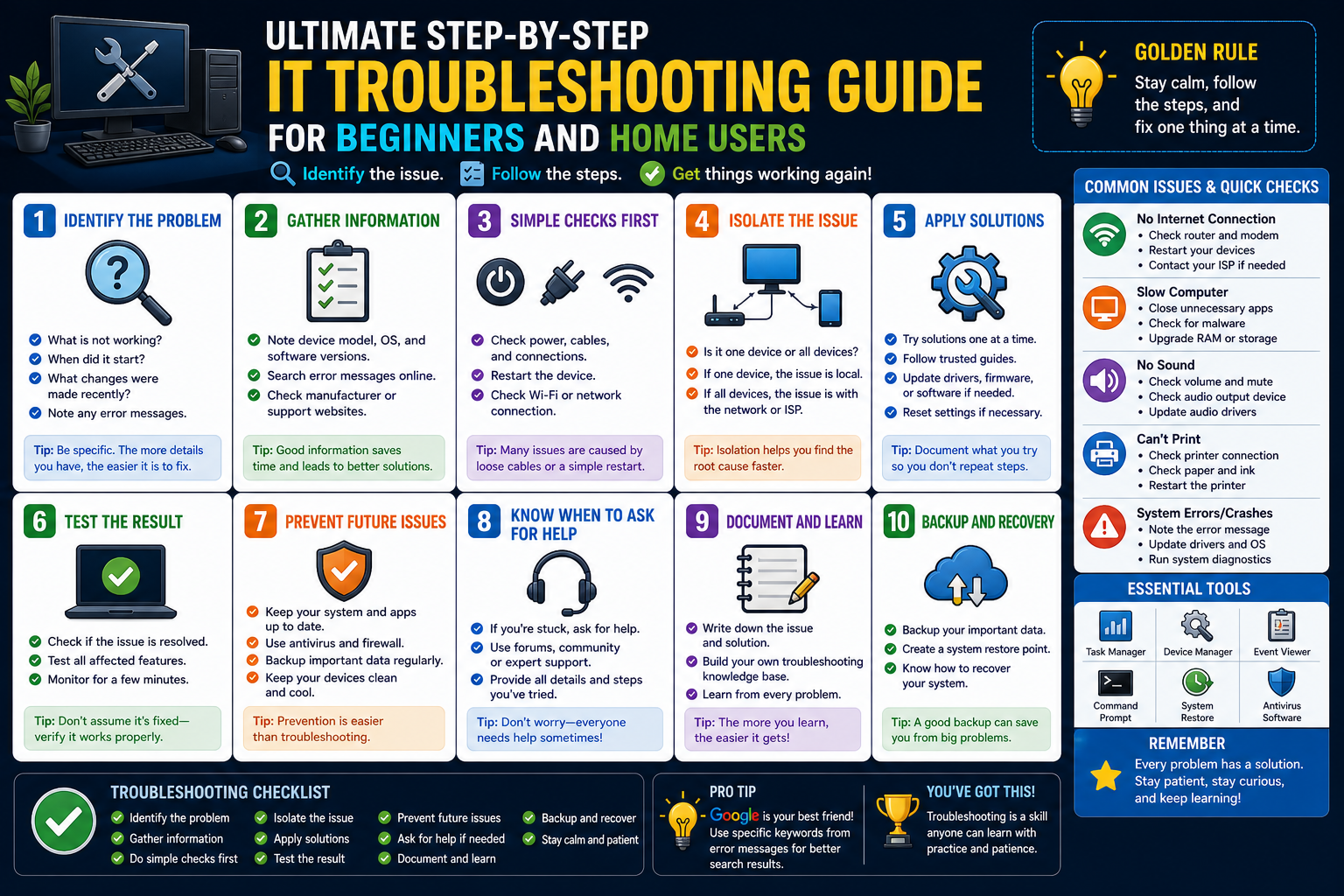
Most end users encounter IT problems in the middle of normal work rather than during planned maintenance or upgrades. A system that was working fine a moment ago can suddenly freeze, disconnect, or slow down without warning. While this often feels unpredictable, most of these issues are caused by a limited set of common triggers such as overloaded system memory, temporary software glitches, unstable network connections, or simple hardware disconnections.
Computers and connected devices rely on a constant exchange between hardware components, operating systems, and running applications. When even one part of this chain behaves unexpectedly, the entire system can appear broken. For example, a web browser may freeze not because the whole computer is failing, but because a single tab is consuming too much memory or a background update is running in the background.
Network-related issues are also frequently misunderstood. A weak WiFi connection does not always mean the internet service is down. It may be caused by distance from the router, interference from physical obstacles like walls, or temporary congestion when too many devices are connected at once. Similarly, what looks like a serious system crash may simply be a background process that temporarily slows down responsiveness.
Understanding this helps shift the mindset from panic to structured observation. Instead of assuming the worst, users can begin identifying patterns: Did the issue happen after opening a specific program? Did it occur after connecting a new device? Was the system already slow before the problem appeared? These small observations become extremely valuable in identifying the root cause.
Another important aspect is recognizing that modern systems are designed with multiple recovery layers. Applications may freeze temporarily but recover automatically. Operating systems may appear stuck while completing background tasks. Even network drops often reconnect within seconds. Many issues resolve themselves if given a short moment, which is why immediate aggressive actions can sometimes make things worse instead of better.
By understanding that most IT issues are either temporary or caused by small disruptions rather than major failures, users can approach troubleshooting with more clarity and less frustration. This foundation is essential before moving into any structured steps for diagnosing or fixing problems.
Preparing Before Troubleshooting: Building Safe Digital Habits
Before attempting any troubleshooting steps, one of the most important habits is ensuring that any unsaved work is protected. Many users lose valuable progress not because the issue itself was severe, but because they attempted fixes without securing their open documents or ongoing tasks. Saving work frequently, enabling autosave where available, and pausing before making system changes can prevent unnecessary data loss.
Another key preparation step is observing the environment in which the issue occurred. This includes noting what was being done at the time, which applications were open, and whether any external devices were connected. These details often provide important clues later during troubleshooting. For example, if a system becomes unresponsive after connecting a USB device, that peripheral may be part of the issue.
It is also helpful to avoid making multiple changes at once. When users immediately restart programs, disconnect devices, and reset settings all at the same time, it becomes difficult to determine what actually resolved the problem. A structured approach works better: change one factor, observe the result, and then proceed if necessary.
Keeping calm and allowing the system a brief moment to respond is also part of preparation. Many users instinctively click repeatedly or open multiple recovery options when a system slows down. However, this can increase system load and worsen the issue. A short pause often allows background processes to complete, especially when updates or temporary spikes in resource usage are involved.
Another useful habit is ensuring awareness of account credentials and access information. Some troubleshooting steps may involve restarting systems, logging out, or reconnecting to networks. Having login information ready ensures that users are not locked out of their own devices during recovery attempts.
Finally, understanding basic device layout helps significantly. Knowing where power buttons, restart options, network indicators, and external ports are located allows users to act quickly and confidently when issues arise. This familiarity reduces hesitation and helps maintain control over the situation rather than reacting under pressure.
Preparation is not about technical expertise; it is about building awareness and protecting data before taking any action. This mindset ensures that troubleshooting remains safe and effective from the very beginning.
First Response Checks: Power, Cables, and Physical Connections
Many IT issues that appear complex at first are actually caused by simple physical connection problems. Loose cables, unplugged devices, or power interruptions are among the most overlooked causes of system failure. Because modern devices are designed to be compact and mobile, cables can easily become partially disconnected without being visibly obvious.
The first step in any troubleshooting process is verifying that all essential devices are receiving power. This includes checking whether computers are turned on, monitors are active, and external devices such as routers or printers have power indicators lit. A device that appears “broken” may simply be turned off or disconnected from its power source.
For wired setups, it is important to check both ends of each cable. A monitor cable, for instance, may appear secure at the screen end but could be loose at the computer connection. Similarly, Ethernet cables used for internet connectivity can become partially unplugged, leading to unstable or lost connections.
Battery-powered devices introduce another layer of potential issues. Wireless mice, keyboards, and laptops can stop functioning due to drained batteries. In such cases, replacing or recharging batteries often resolves the issue immediately without further investigation.
External peripherals should also be checked carefully. Devices such as printers, scanners, or external drives may stop responding simply because they have been disconnected or powered off. Reconnecting them properly or switching USB ports can often restore functionality.
It is also worth checking power strips or surge protectors if multiple devices are affected at once. A single switched-off power strip can make an entire workstation appear non-functional. Similarly, accidental unplugging of a main power cable can impact several devices simultaneously.
These physical checks are often the fastest way to resolve apparent system failures. They require no technical tools or advanced knowledge, only careful observation. Because they are so simple, they are sometimes skipped, yet they remain one of the most effective first steps in troubleshooting.
When Your Computer Becomes Unresponsive
A computer that stops responding can be frustrating, especially when it appears frozen in the middle of important work. However, not all unresponsive systems are truly “dead.” In many cases, the operating system is still running background processes but is temporarily unable to respond to user input due to high resource usage.
When this happens, the first step is to observe whether any movement is still happening on screen. Sometimes a spinning icon or slight cursor movement indicates that the system is still active. If so, waiting briefly may allow the system to recover naturally.
If the system remains unresponsive, the next step is to focus on closing problematic applications rather than restarting the entire device immediately. On many systems, specific tools allow users to view active programs and end those that are not responding. This helps free up system resources and may restore normal functionality without a full reboot.
It is also important to understand that forcing multiple actions at once can make recovery more difficult. Repeated clicking, opening menus, or launching new programs during a freeze can increase system load. A more effective approach is to perform one recovery action and then wait for a response.
In some cases, external factors such as software updates or background maintenance tasks can temporarily slow down the system. These processes are often necessary and should not be interrupted unless the system remains frozen for an extended period.
If the system continues to remain unresponsive, a controlled restart becomes the next logical step. This should be done carefully to avoid data loss, ensuring that any possible recovery options are considered first. A restart clears temporary memory usage and reloads system processes, often resolving the issue entirely.
Understanding that unresponsiveness is usually temporary or resource-related helps reduce unnecessary panic and allows users to take more structured actions.
Dealing with Frozen Mouse and Keyboard Input
Input devices such as mice and keyboards are essential for interacting with any system. When they stop responding, it can feel like the entire computer has failed. However, the cause is often isolated and relatively simple.
A wireless mouse or keyboard is frequently affected by battery issues or connection interruptions. Replacing batteries or reconnecting the device can often restore functionality quickly. For USB-connected devices, unplugging and reconnecting them may resolve temporary recognition issues.
In some cases, the issue may not be with the device itself but with the system’s ability to recognize input. A temporary system freeze can make it appear as though the mouse or keyboard is not working, even though the devices are functioning correctly.
Testing multiple input methods can help identify the cause. For example, if the mouse is unresponsive but keyboard shortcuts still work, the issue is likely isolated to the pointing device. If both fail, the system itself may be experiencing a broader performance issue.
Physical obstructions should also be considered. Wireless mice may fail if used on reflective or uneven surfaces, and keyboards may stop responding if cables are damaged or ports are loose.
Restarting the connection layer, such as unplugging and reconnecting USB devices, often helps refresh communication between hardware and system drivers. In wireless setups, turning devices off and on again can re-establish connectivity.
Understanding these basic checks allows users to quickly differentiate between hardware issues and system-wide problems, making troubleshooting more efficient and less confusing.
Internet and WiFi Interruptions Basics
Internet connectivity issues are among the most common problems users face. When websites stop loading or applications disconnect, it is easy to assume that the entire system is failing. However, network issues often originate from external or environmental factors rather than the device itself.
A weak WiFi signal is one of the most frequent causes. Distance from the router, physical barriers like walls, or interference from other electronic devices can weaken signal strength. Moving closer to the router or repositioning the device can sometimes restore connectivity instantly.
Another common issue is temporary service disruption from the network provider. In such cases, multiple devices in the same area may experience connectivity problems simultaneously. This indicates that the issue is not device-specific.
Restarting network connections can also help refresh communication between the device and router. This process clears temporary glitches and re-establishes a stable connection.
It is also important to check whether the device is connected to the correct network. In environments with multiple networks available, devices may switch automatically to weaker or incorrect connections.
Browser-related issues can sometimes mimic internet problems. A single browser freezing does not necessarily mean the internet is down. Testing multiple applications or websites helps confirm whether the issue is network-wide or isolated.
Understanding these basic principles helps users avoid unnecessary troubleshooting steps and focus on the actual source of the problem.
Application Freezing and System Lag: Early Steps
Applications may freeze or slow down due to high memory usage, software conflicts, or temporary glitches. When this happens, the system may still be operational, but specific programs become unresponsive.
One of the most effective early steps is to wait briefly before taking action. Many applications recover automatically after completing background tasks. If the issue persists, closing and reopening the program often resolves the problem.
System lag, where everything becomes slow rather than completely frozen, is often caused by multiple applications running simultaneously. Closing unused programs can help free up system resources and improve performance.
Background updates or scans can also temporarily reduce system speed. These processes are usually necessary and should not be interrupted unless they cause prolonged disruption.
Understanding the difference between a full system failure and a temporary performance slowdown helps users choose appropriate responses without escalating the situation unnecessarily.
Moving from Basic Fixes to Structured Troubleshooting Thinking
Once simple checks like power, connections, and quick restarts have been ruled out, the next stage of troubleshooting requires a more structured way of thinking. At this level, problems are less about obvious physical issues and more about how different parts of the system interact with each other. This includes software behavior, memory usage, background processes, and system-level conflicts that are not immediately visible.
A useful approach is to think in terms of “change and response.” Every issue usually begins after something changes, even if that change is not obvious at first. It could be a new software installation, an automatic update, a recently opened file, or even a shift in network conditions. Identifying what changed before the issue began is often more valuable than immediately trying random fixes.
At this stage, troubleshooting becomes less about reacting and more about observing patterns. Instead of restarting repeatedly or closing random applications, users begin narrowing down possibilities. This helps avoid unnecessary disruptions and reduces the chance of making the problem worse.
Another key shift in thinking is recognizing that systems rarely fail without warning. Most issues build gradually through performance degradation, delayed responses, or intermittent failures before becoming fully noticeable. Understanding this progression allows users to identify early warning signs and act more strategically.
Understanding Software Conflicts and Application Behavior
Software conflicts occur when two or more applications attempt to use the same system resources in incompatible ways. This can result in freezing, crashing, or unexpected behavior. Unlike hardware issues, software conflicts often appear inconsistently, making them harder to diagnose.
One common scenario involves background applications that continue running even when not actively used. These programs can consume memory, processing power, or network bandwidth, leading to performance issues in other applications. The system may appear slow even though no single program seems overloaded.
Another type of conflict arises when applications are not fully compatible with each other or with the operating system version. This can happen after updates, where older software struggles to adapt to newer system environments. In such cases, the issue may only appear when specific features are used.
Some applications also install background services that run automatically during system startup. Over time, too many of these services can accumulate, leading to slower boot times and reduced responsiveness. Identifying unnecessary startup programs can significantly improve system stability.
It is also important to recognize that not all application errors are permanent. Temporary glitches can occur due to memory spikes or incomplete background operations. Restarting the application often resets its internal state, resolving the issue without further intervention.
Understanding how software interacts within the system helps users isolate whether the issue is related to a single application or a broader system condition.
Managing System Performance and Memory Pressure
System performance is closely tied to how efficiently memory and processing power are used. When these resources become overloaded, the system begins to slow down, freeze, or delay responses. This condition is often referred to as memory pressure.
Memory pressure occurs when too many applications are open at the same time or when a single application consumes excessive resources. In such situations, the system struggles to allocate enough memory for smooth operation. As a result, everything feels slower, even simple actions like opening folders or switching windows.
A common misunderstanding is assuming that only visible applications affect performance. In reality, background processes, system services, and update tasks also consume significant resources. These processes are often necessary but can still contribute to temporary slowdowns.
Another factor is long system uptime. Devices that remain on for extended periods without restarting may gradually accumulate memory inefficiencies. Restarting the system clears temporary data and refreshes resource allocation, often improving performance significantly.
Storage space also plays a role in system responsiveness. When storage becomes nearly full, the system has less flexibility for temporary file creation, which can slow down operations. Maintaining available storage helps ensure smoother performance.
Understanding performance issues as resource allocation problems rather than simple “slowness” allows for more accurate troubleshooting and better long-term system management.
Navigating Operating System-Level Issues
Operating system-level issues are more complex because they affect how the entire device functions rather than a single application. These problems may manifest as delayed startup, repeated errors, or inconsistent behavior across multiple programs.
One common cause is corrupted temporary system data. Over time, systems generate temporary files that help applications run efficiently. If these files become damaged or outdated, they can interfere with normal operations. Restarting the system often clears these temporary states.
Another issue involves system updates. While updates are designed to improve performance and security, they can sometimes introduce temporary instability during or immediately after installation. This can result in slower performance or unexpected behavior until the system stabilizes.
User profile inconsistencies can also affect system behavior. A user profile stores personalized settings, preferences, and configurations. If this profile becomes corrupted, it may lead to unusual system behavior that does not affect other users on the same device.
Operating systems also rely on background services that manage tasks such as file indexing, security scanning, and device synchronization. When these services encounter errors, they can indirectly impact system responsiveness.
Understanding that the operating system acts as the central coordinator for all activities helps explain why issues at this level often feel widespread rather than isolated.
Handling Startup and Boot Slowdowns
Slow startup behavior is a common issue that develops gradually over time. When a system takes longer than usual to become usable, it is often due to the number of applications and services that load during startup.
Each program that automatically starts with the system adds a small delay. While one or two applications may not cause noticeable issues, multiple startup programs can significantly extend boot time. This results in a slow and unresponsive system immediately after turning it on.
Another contributing factor is background system checks. After updates or unexpected shutdowns, systems may perform integrity checks during startup. These processes ensure stability but can temporarily slow down access.
Storage fragmentation and limited available space can also affect startup speed. When the system has to search through more data or manage constrained storage, the boot process becomes less efficient.
Some devices also perform synchronization tasks during startup, such as cloud syncing or email updates. These background tasks can delay full system readiness even after the desktop appears.
Understanding startup behavior helps users distinguish between normal initialization delays and abnormal slow boot issues that require further investigation.
Exploring Driver and Hardware Compatibility Issues
Drivers are essential components that allow hardware devices to communicate with the operating system. When drivers become outdated, corrupted, or incompatible, devices may not function correctly or may behave unpredictably.
For example, a graphics driver issue can lead to screen flickering, application crashes, or reduced display quality. Similarly, outdated audio drivers may cause sound distortion or complete audio failure.
Hardware compatibility issues often become more noticeable after system updates. A device that worked perfectly before an update may suddenly experience problems if the updated system requires a newer or different driver version.
In some cases, multiple devices may compete for system resources, leading to instability. This is particularly common when several external devices are connected simultaneously.
Driver-related issues are often subtle because they do not always cause complete failure. Instead, they may result in reduced performance or intermittent glitches that are difficult to reproduce consistently.
Understanding the role of drivers helps users recognize that not all hardware issues are caused by physical damage; many are related to communication mismatches between software and devices.
Network Stability and Intermediate Connectivity Problems
Beyond basic internet connectivity checks, more complex network issues can arise that affect stability rather than complete connection loss. These issues often manifest as slow loading times, intermittent disconnections, or delayed responses in online applications.
One common cause is network congestion, where too many devices are using the same connection simultaneously. This reduces available bandwidth and leads to inconsistent performance across all connected devices.
Another factor is router performance. Routers that have been running for long periods may experience memory overload or temporary glitches. This can impact overall network stability even when the internet service itself is functioning correctly.
Signal interference is also a major contributor to unstable connections. Devices such as microwaves, cordless phones, or neighboring WiFi networks can disrupt signal quality, especially in densely populated areas.
In some cases, devices may automatically switch between different network bands or access points, leading to temporary drops in connectivity. This is particularly common in environments with multiple routers or extended networks.
Understanding network behavior at this level helps users identify whether issues are related to local device conditions or broader network infrastructure.
File System Errors and Storage-Related Problems
Storage systems play a crucial role in overall device performance. When file systems develop errors, users may experience missing files, slow access times, or application crashes.
File system errors can occur due to improper shutdowns, sudden power loss, or interrupted file transfers. These disruptions can leave incomplete data structures that affect how the system reads and writes information.
Over time, storage devices may also become fragmented or inefficient, especially when large numbers of files are frequently created and deleted. This can slow down file retrieval and overall system responsiveness.
Another issue arises when storage devices begin to fail physically. While less common in early stages, warning signs such as unusual delays, frequent errors, or disappearing files may indicate underlying hardware deterioration.
Insufficient storage space is another frequent cause of performance issues. When storage becomes nearly full, the system struggles to manage temporary files and background operations efficiently.
Understanding storage behavior helps users recognize that file-related issues often have deeper system implications beyond just missing or inaccessible data.
User Account and Permission-Related Complications
User account settings and permissions can sometimes create unexpected restrictions or behavior changes within a system. These issues may appear as applications failing to open, settings not saving, or features becoming inaccessible.
Each user account typically has specific permissions that control access to system resources. If these permissions are altered or corrupted, users may experience limitations that do not affect others on the same device.
In shared environments, differences between user profiles can lead to confusion when settings or applications behave differently. This is often mistaken for a system failure when it is actually a configuration issue.
Temporary profile loading issues can also occur during login, resulting in default settings being applied instead of personalized configurations. This can make the system appear unfamiliar or incomplete.
Understanding account-level behavior helps distinguish between system-wide issues and user-specific problems, allowing for more targeted troubleshooting approaches.
Identifying Patterns in Recurring System Issues
When problems occur repeatedly, identifying patterns becomes one of the most effective troubleshooting strategies. Recurring issues often point to underlying causes that are not immediately visible during a single occurrence.
Timing is one important pattern to observe. If issues consistently occur at specific times, they may be related to scheduled tasks, automatic updates, or peak usage periods.
Application-specific patterns are also useful. If only one program consistently causes problems, the issue is likely isolated to that software rather than the entire system.
Environmental patterns, such as issues occurring only when connected to certain networks or devices, can also provide valuable clues.
By focusing on repetition and consistency rather than isolated incidents, users can narrow down potential causes more effectively and avoid unnecessary troubleshooting steps.
Building a Methodical Troubleshooting Workflow for Complex Issues
When basic and intermediate fixes no longer resolve the problem, troubleshooting shifts into a more structured and disciplined workflow. At this stage, randomness becomes the enemy. Instead of trying multiple fixes quickly, the focus moves toward controlled steps that isolate variables one at a time.
A methodical workflow begins with clearly defining the problem in observable terms. Rather than describing an issue as “the system is broken,” it becomes more useful to define what specifically is not working, when it started, and how often it occurs. This helps transform a vague situation into a measurable pattern.
The next step is limiting variables. This means changing only one condition at a time while observing the result. For example, if a system is unstable, it is more effective to test it with only essential applications running rather than changing multiple settings at once. This prevents confusion about what actually caused improvement or failure.
Another important principle is reproducibility. A problem that can be consistently reproduced is far easier to diagnose than one that appears randomly. Identifying the exact sequence of actions that triggers the issue becomes a priority, even if it takes time and patience.
Prioritization also plays a key role. Not all symptoms are equally important. Some are consequences of deeper issues rather than root causes themselves. For instance, application crashes may be a symptom of memory pressure rather than the actual source of the problem.
By following a structured workflow, troubleshooting becomes less about reacting and more about systematically narrowing down possibilities until the underlying cause becomes clear.
Using System Logs and Diagnostic Information for Deeper Insight
Modern systems generate continuous background records of events, errors, and system behavior. These records, often referred to as logs, provide valuable insight into what is happening behind the scenes when issues occur.
Logs typically capture system events such as application errors, hardware communication issues, service failures, and security alerts. While these messages may seem technical, they often contain clues about the timing and nature of a problem.
One of the most useful aspects of logs is time correlation. By matching the time an issue occurred with log entries, it becomes possible to identify what was happening in the system at that exact moment. This can reveal whether the issue was triggered by a specific application, background process, or system event.
Logs can also highlight repeated errors. If the same warning or failure appears multiple times, it often indicates a persistent underlying issue rather than a one-time glitch. This helps distinguish between random behavior and systemic problems.
Diagnostic information can also include system health reports that summarize performance, resource usage, and error frequency. These summaries help provide a broader view of system stability over time rather than focusing on a single moment.
Although logs are detailed and sometimes difficult to interpret, they represent one of the most reliable sources of truth during advanced troubleshooting. They reveal patterns that are not visible through normal system interaction.
Safe Mode and Minimal Environment Testing
When systems behave unpredictably, testing in a minimal environment can help isolate the root cause. A minimal environment is one where only essential system components are running, with most third-party applications and services temporarily disabled.
This approach helps determine whether the issue is caused by core system functionality or external software. If the problem disappears in a minimal environment, it is likely caused by an application, driver, or background service rather than the operating system itself.
In contrast, if the issue persists even in a minimal setup, it suggests a deeper system-level or hardware-related problem.
Working in a simplified environment reduces interference and makes behavior more predictable. It removes unnecessary complexity, allowing users to focus only on essential system operations.
This method is particularly useful for diagnosing startup-related issues, performance instability, and application conflicts. It also helps identify problematic software that may not be obvious during normal usage.
Testing in a minimal environment does not permanently change system settings. It is a controlled diagnostic step designed purely for observation and isolation.
Isolating Hardware vs Software Through Controlled Testing
One of the most important distinctions in troubleshooting is determining whether a problem originates from hardware or software. Misidentifying this can lead to wasted effort and ineffective solutions.
Controlled testing involves changing one layer of the system while keeping others constant. For example, if an application consistently crashes, testing whether the same behavior occurs with different applications helps determine if the issue is software-specific.
Similarly, using external devices interchangeably can help isolate hardware issues. If one mouse or keyboard behaves inconsistently while another works correctly, the problem is likely with the device rather than the system.
Another method involves testing system behavior without additional peripherals. Removing external devices temporarily can help determine whether they are contributing to instability.
Storage devices, memory components, and input peripherals all interact differently with the system. Observing how the system behaves when individual components are added or removed helps narrow down the source of failure.
Software-related issues often show variability depending on configuration, while hardware issues tend to be more consistent and reproducible. Understanding this difference is key to accurate diagnosis.
Security-Related Issues and Malware-Like System Behavior
Not all system issues are caused by performance or compatibility problems. In some cases, unusual behavior may be related to security threats or unwanted background activity that resembles malware-like behavior.
Symptoms of such issues can include unexpected system slowdowns, unfamiliar applications running in the background, sudden changes in settings, or excessive network activity without user input.
However, it is important not to assume malicious activity immediately. Many legitimate applications also run background processes that may appear suspicious at first glance. The key is to observe patterns rather than isolated events.
One common sign of security-related issues is persistent behavior that continues even after restarting applications or the system. Unlike temporary glitches, these issues often reappear consistently.
Another indicator is unexplained resource usage. If system performance drops significantly without an obvious cause, background activity should be investigated as a potential factor.
Security-related troubleshooting often involves reviewing running processes, checking startup behavior, and identifying unfamiliar software. The goal is to distinguish between legitimate system operations and unexpected activity.
Maintaining a cautious but balanced approach is important. Overreacting to normal system behavior can lead to unnecessary disruption, while ignoring persistent anomalies can allow problems to continue.
Recovery Options and System Restoration Concepts
When troubleshooting reaches a point where normal fixes are no longer effective, recovery options provide a way to restore system stability without starting from scratch.
System recovery tools are designed to return the device to a previous stable state. This is particularly useful when issues begin after updates, installations, or configuration changes.
Restoration does not necessarily erase personal data, but it may revert system settings and installed applications to earlier states. This allows users to undo recent changes that may have caused instability.
Another recovery approach involves resetting system components to default configurations. This helps eliminate accumulated configuration errors that may have developed over time.
In more severe cases, recovery may involve reinstalling system components while preserving user data. This ensures that core system functionality is restored while minimizing data loss.
Recovery should always be considered after other troubleshooting steps have been exhausted, as it can significantly alter system configuration. However, it remains one of the most effective ways to resolve deep system-level issues.
Data Protection Strategies During Troubleshooting
Protecting data during troubleshooting is essential because some corrective actions can involve system changes that may affect stored files or configurations.
One of the most important habits is maintaining copies of critical information before attempting major fixes. This ensures that even if something goes wrong during troubleshooting, important data remains safe.
Data protection also includes being cautious when modifying system settings or performing recovery actions. Understanding the potential impact of each step helps prevent accidental data loss.
Another key strategy is separating personal files from system-related files. Keeping important documents in independent storage locations reduces the risk of unintended modification during system repairs.
It is also important to avoid interrupting ongoing processes that involve file management or system updates. Interrupting such processes can lead to incomplete data states or corruption.
By prioritizing data protection, troubleshooting becomes a safer process that focuses on system recovery without compromising important information.
Remote Support and Effective Communication with IT Teams
When issues cannot be resolved independently, seeking support becomes necessary. However, the effectiveness of support depends heavily on how clearly the problem is communicated.
Providing a clear description of the issue helps support teams understand the situation quickly. This includes explaining what is not working, when the issue started, and what actions were taken before the problem occurred.
It is also helpful to describe symptoms rather than assumptions. Instead of guessing the cause, describing observable behavior allows support teams to diagnose the issue more accurately.
Information about the device, operating environment, and any recent changes is also important. These details help narrow down potential causes and reduce diagnostic time.
Effective communication also involves being precise about what has already been attempted. Repeating previously unsuccessful steps wastes time and can delay resolution.
Remote support often relies on structured information gathering, so clarity and completeness are essential for efficient troubleshooting.
Writing Effective Incident Descriptions for Technical Resolution
Clear documentation of issues plays a major role in resolving technical problems efficiently. A well-structured description helps others understand the problem without needing additional clarification.
An effective incident description focuses on facts rather than interpretations. It explains what happened, what was expected to happen, and how the actual behavior differed from expectations.
Including the sequence of actions leading to the issue is also valuable. This helps recreate the problem in a controlled environment for diagnosis.
Avoiding vague language is important. Terms like “not working properly” should be replaced with specific observations such as delays, error messages, or unresponsive behavior.
Consistency in reporting also helps. If the issue occurs repeatedly, noting the frequency and conditions under which it appears provides useful diagnostic context.
A clear incident description reduces back-and-forth communication and allows resolution to happen more efficiently.
Preventive Maintenance Habits for Long-Term System Stability
Long-term system stability depends not only on fixing problems but also on preventing them from occurring in the first place. Preventive maintenance focuses on keeping systems in a healthy state through regular attention and care.
One important habit is periodic system restarts. Restarting helps clear temporary data and refresh system resources, preventing gradual performance decline.
Managing installed applications also contributes to stability. Removing unused software reduces background load and minimizes potential conflicts.
Maintaining sufficient storage space ensures that the system can operate efficiently without unnecessary restrictions. Systems that are consistently near full capacity tend to experience slower performance over time.
Keeping software and system components updated also plays a role in stability. Updates often include improvements that resolve known issues and enhance compatibility.
Monitoring system behavior over time helps identify early signs of potential problems. Small changes in performance, responsiveness, or stability often indicate developing issues that can be addressed early.
By adopting preventive habits, users reduce the likelihood of major disruptions and maintain smoother system performance over the long term.
Conclusion
Effective IT troubleshooting is less about advanced technical knowledge and more about following a clear, structured approach to problem-solving. Most everyday issues that users encounter—such as frozen applications, slow performance, disconnected networks, or unresponsive devices—are caused by relatively simple and common factors. These include temporary software glitches, overloaded system resources, loose physical connections, or background processes that temporarily disrupt normal operation.
By starting with basic checks like power supply, cables, and device connections, many problems can be resolved quickly without further escalation. When issues persist, a more methodical approach becomes important, focusing on isolating variables, observing patterns, and understanding what changed before the problem began. This shift from reaction to analysis is what separates random trial-and-error from effective troubleshooting.
As problems become more complex, deeper layers such as software conflicts, system performance limitations, driver compatibility, and network instability come into play. At this stage, patience and observation become essential. Rather than applying multiple fixes at once, identifying one change at a time helps uncover the true source of the issue.
Advanced troubleshooting also highlights the importance of system awareness, including understanding logs, recognizing resource pressure, and distinguishing between hardware and software behavior. In many cases, what appears to be a major failure is actually a temporary condition that resolves once the system is properly reset or resources are freed.
Equally important is knowing when to stop troubleshooting independently and provide clear, structured information for support teams. A well-described issue significantly reduces resolution time and improves accuracy.
Ultimately, maintaining healthy systems is a combination of reactive troubleshooting and preventive habits. Regular maintenance, careful usage, and awareness of system behavior all contribute to long-term stability. With these practices, users can confidently handle most technical issues and reduce dependency on external support for everyday IT challenges.