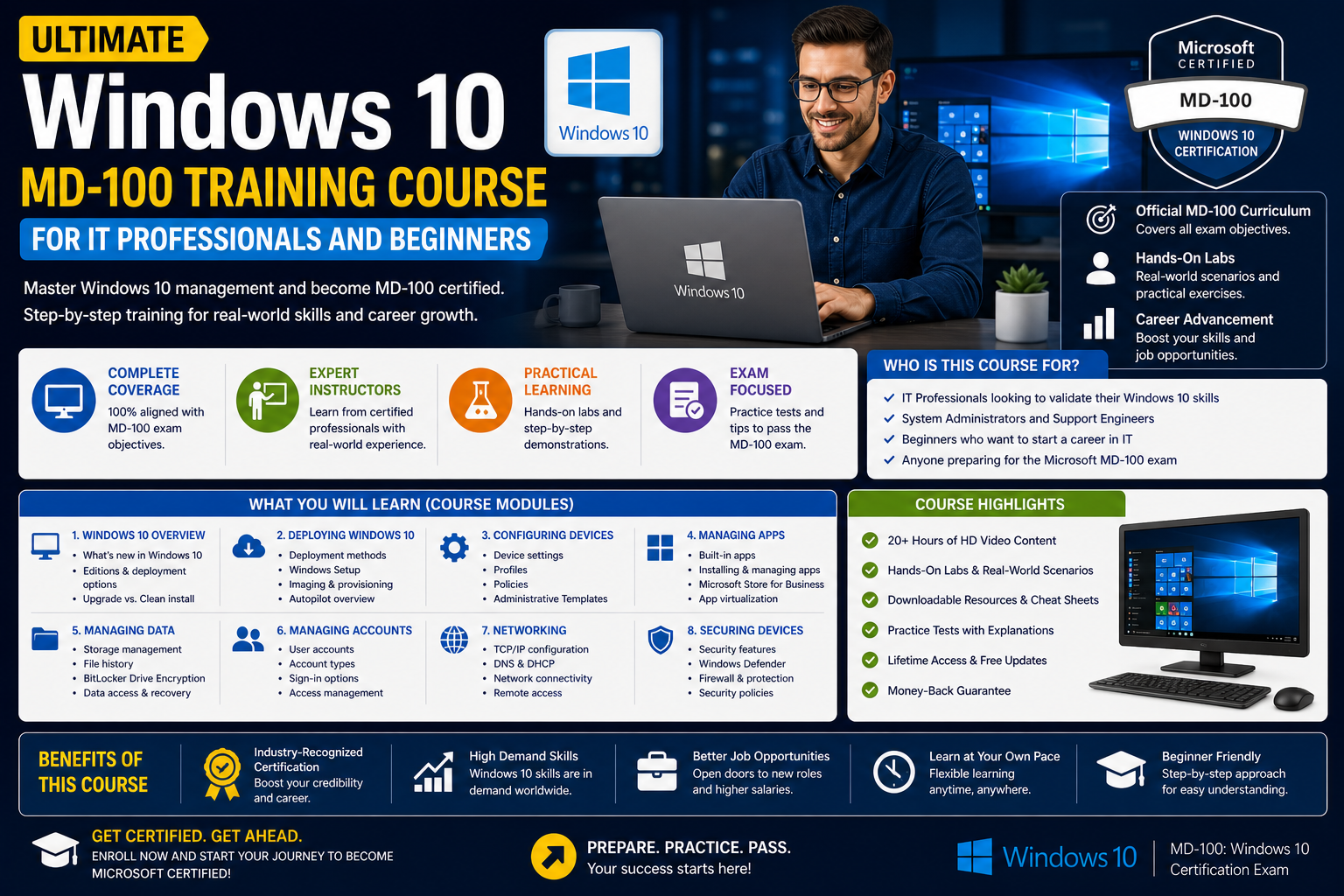
Windows 10 remains a widely used operating system in both enterprise and organizational environments because it balances usability with strong administrative control. In modern IT ecosystems, administrators are expected to manage large numbers of devices that may be physically distributed, remotely connected, or frequently changing in configuration. This makes Windows 10 administration more than just installing an operating system; it becomes a structured process of planning, deployment, configuration, and continuous management.
At its core, Windows 10 administration focuses on ensuring that devices are secure, consistent, and aligned with organizational requirements. This includes controlling how devices are deployed, how users interact with them, and how systems remain updated and protected over time. Administrators must also consider compatibility with productivity tools, especially those commonly used in business environments, as well as integration with cloud-based identity and management platforms.
Another key aspect of modern Windows 10 environments is the shift away from purely on-premises control toward hybrid management models. Devices may be joined to traditional domain services, cloud-based identity systems, or a combination of both. This flexibility allows organizations to support remote workers, mobile users, and distributed teams without sacrificing centralized control.
Understanding these foundational principles is important before moving into deployment or configuration tasks. Without this context, device management can become inconsistent, leading to security risks or operational inefficiencies. Windows 10 administration is therefore best approached as a lifecycle process that begins before installation and continues throughout the device’s active usage period.
Preparing Devices for Deployment
Before deploying Windows 10 across an environment, proper preparation ensures consistency and reduces issues later in the lifecycle. Device preparation involves evaluating hardware requirements, confirming compatibility, and determining the most appropriate deployment method for the environment.
Hardware readiness is an essential starting point. Devices must meet minimum system requirements to support Windows 10 efficiently, including sufficient processor capacity, memory, storage, and graphics capability depending on the intended use. In enterprise environments, standardized hardware models are often selected to simplify deployment and support. This reduces variability and makes troubleshooting more predictable.
Another critical part of preparation is inventory planning. Administrators typically categorize devices based on usage roles, such as standard office workstations, developer machines, or specialized systems used for specific tasks. Each category may require different configurations, software packages, or security settings. Establishing these categories early allows for more structured deployment planning.
Security considerations also begin at this stage. Organizations must decide how devices will be protected from the moment they are first powered on. This may include encryption requirements, authentication methods, and policies that govern how users access the system. Planning these settings in advance ensures they are consistently applied during deployment rather than added later.
In addition, deployment preparation includes selecting tools and methods that align with organizational goals. Some environments may prefer automated deployment processes, while others may rely on manual or semi-automated setups depending on scale and complexity. The preparation stage helps define these choices clearly, reducing confusion during implementation.
Deployment Methods in Windows 10
Windows 10 supports multiple deployment approaches, allowing administrators to choose methods that best fit their environment size, complexity, and level of automation. Each deployment method has advantages and trade-offs, and understanding them is essential for efficient system rollout.
One common approach is manual installation, where each device is individually configured. While this method provides full control, it is time-consuming and typically only suitable for small environments or specialized systems. It requires administrators to repeat the installation and configuration steps for every machine, which can lead to inconsistencies if not carefully managed.
Another widely used method involves image-based deployment. In this approach, a standardized operating system image is created and then applied to multiple devices. This ensures consistency across all systems and significantly reduces setup time. Once the image is deployed, additional configuration can be applied based on user roles or device categories.
Provisioning packages represent a more modern and flexible approach. These packages allow administrators to configure devices quickly without performing full reinstallation. They are especially useful in environments where devices are shipped directly to users or where rapid setup is required. Provisioning can apply settings such as network configuration, security policies, and application installations.
Cloud-based deployment methods have also become increasingly important. These approaches leverage online identity and management systems to automatically configure devices during initial setup. When a device connects to the internet for the first time, it can receive organizational policies and settings without manual intervention, reducing administrative overhead significantly.
Each deployment method must be chosen based on organizational needs. Large enterprises often combine multiple methods to support different use cases, such as imaging for office-based systems and provisioning for remote users. The key objective across all methods is to ensure consistency, security, and efficiency in device rollout.
Installation and Upgrade Pathways
Installing Windows 10 can be performed through several pathways depending on the starting condition of the device. A clean installation involves installing the operating system on a newly formatted drive, which ensures no residual data or configuration conflicts exist. This method is often preferred when deploying new systems or replacing outdated environments.
In contrast, upgrade installations allow existing systems to move to Windows 10 while preserving user data, applications, and settings. This approach is useful in environments where downtime must be minimized or where systems are already in use and functioning correctly. However, upgrade processes require careful compatibility checks to ensure existing software and hardware continue to function properly after migration.
Another important installation method is reset-based deployment. This approach restores a device to its original state, effectively reinstalling Windows 10 while optionally preserving personal files. It is often used for troubleshooting or preparing devices for reassignment to new users.
Installation processes also involve selecting configuration options during setup, such as regional settings, keyboard layouts, and user account creation methods. These early decisions influence how the system behaves once fully installed and should align with organizational standards.
In enterprise environments, installation is rarely performed manually on each device. Instead, automated processes are used to ensure speed and consistency. These processes may include scripted installations or centralized deployment tools that push configurations to multiple systems simultaneously.
Upgrade pathways require additional planning compared to clean installations because they must account for existing system states. Compatibility assessment, application readiness, and data integrity checks are important steps before initiating an upgrade. Without proper planning, upgrades may result in performance issues or application failures.
Configuring Initial Device Settings
Once Windows 10 is installed, initial configuration plays a crucial role in shaping system behavior and user experience. These settings establish the baseline environment for security, usability, and performance.
One of the first configuration steps involves setting up user accounts. Depending on the environment, this may include local accounts, domain-based accounts, or cloud-based identities. Each method affects how users authenticate and access resources. Centralized identity management is often preferred in organizational environments because it simplifies control and improves security.
System configuration also includes setting regional preferences such as language, time zone, and keyboard layout. While these settings may seem minor, they are essential for ensuring consistency across devices, especially in global organizations.
Security configuration is another important aspect of initial setup. Administrators often define password policies, account lockout rules, and authentication requirements during this stage. These settings help protect devices from unauthorized access and form the foundation of endpoint security.
Device naming conventions are also applied during initial configuration. Consistent naming helps administrators identify systems quickly within a network, making management and troubleshooting more efficient. Naming rules are often based on location, department, or device role.
Additionally, software installation may begin during initial setup. Essential applications required for business operations can be deployed early to ensure users have immediate access to necessary tools. This reduces downtime and improves productivity from the moment the device becomes operational.
Joining Devices to a Network Environment
After installation and initial configuration, devices typically need to be integrated into a broader network environment. This process allows systems to access shared resources, apply centralized policies, and communicate with other devices securely.
One common method of integration involves joining a domain environment. In this model, devices become part of a centralized directory structure that manages authentication, permissions, and policy enforcement. Domain membership allows administrators to control devices from a central location, simplifying large-scale management.
Another modern approach involves cloud-based identity joining. This method allows devices to connect directly to cloud identity services, enabling remote management and policy application without traditional on-premises infrastructure. It is particularly useful for organizations with distributed or remote workforces.
Network integration also includes configuring connectivity settings such as IP addressing, DNS resolution, and proxy configurations. These settings ensure devices can communicate effectively within the network and access required services without interruption.
Group policies or configuration profiles are often applied after joining the network. These policies define how devices behave, what users can access, and how security settings are enforced. They play a central role in maintaining consistency across all systems in an organization.
Proper network integration ensures that devices are not isolated but instead function as part of a coordinated ecosystem. This improves both security and operational efficiency by centralizing control and monitoring.
Managing Network Connectivity and Troubleshooting
Network connectivity is a critical component of Windows 10 device functionality. Without stable connections, users cannot access resources, communicate effectively, or perform essential tasks. As a result, administrators must understand how to manage and troubleshoot connectivity issues.
Windows 10 includes built-in tools that assist in diagnosing network problems. These tools can identify issues related to IP configuration, DNS resolution, and gateway connectivity. Administrators use these diagnostics to quickly locate and resolve problems without extensive manual investigation.
Connectivity management also involves configuring wireless and wired connections appropriately. In environments with multiple network types, devices may need to switch between connections seamlessly without disrupting user activity. Proper configuration ensures stability and reliability across different network conditions.
Firewall settings also play a role in connectivity. While firewalls protect systems from unauthorized access, incorrect configuration can block legitimate traffic. Administrators must balance security requirements with functional connectivity needs.
Troubleshooting network issues often involves a step-by-step process of elimination. This includes verifying physical connections, checking IP settings, testing DNS resolution, and confirming access to external services. A structured approach reduces downtime and improves resolution efficiency.
Monitoring tools may also be used to track network performance over time. These tools help identify patterns such as slow connections or intermittent failures, allowing administrators to address underlying issues before they escalate.
User Profile and Access Configuration
User profiles in Windows 10 define how individuals interact with the system and what level of access they are granted. Proper configuration ensures both usability and security within an organization.
Profiles can be local or roaming depending on organizational requirements. Local profiles are stored directly on a device, while roaming profiles follow the user across multiple systems. Roaming profiles are particularly useful in shared environments where users frequently switch devices.
Access control is another important aspect of user configuration. Administrators assign permissions based on roles, ensuring users only have access to the resources they need. This principle of least privilege helps reduce security risks.
Group membership also plays a significant role in access management. By assigning users to specific groups, administrators can apply policies and permissions collectively rather than individually. This simplifies management in large environments.
User experience settings such as desktop layout, application preferences, and personalization options are also managed through profiles. In enterprise environments, some of these settings may be standardized to maintain consistency across systems.
Proper user configuration ensures that individuals can work efficiently while maintaining the security and integrity of the overall system environment.
Device Enrollment Concepts
Device enrollment refers to the process of registering systems into a management framework so they can be centrally controlled. This is an essential step in modern Windows 10 administration, particularly in environments that use cloud-based management.
Once enrolled, devices can receive policies, updates, and configurations automatically. This reduces the need for manual intervention and ensures consistency across all managed systems.
Enrollment can occur during initial setup or after deployment. In many modern environments, devices are automatically enrolled when they are first connected to the internet and associated with an organizational identity.
This process also enables monitoring capabilities, allowing administrators to track device health, compliance status, and usage patterns. If a device falls out of compliance, corrective actions can be applied remotely.
Device enrollment forms the foundation of centralized management and is essential for maintaining control over large and distributed device fleets.
Connectivity with Microsoft Ecosystem Services
Windows 10 devices often operate within a broader ecosystem of connected services that enhance productivity and management capabilities. These services include identity management platforms, cloud storage systems, and collaboration tools.
Integration with these services allows seamless access to files, applications, and communication tools across multiple devices. Users can start work on one system and continue on another without losing progress.
From an administrative perspective, ecosystem integration simplifies policy enforcement and data management. Settings and configurations can be synchronized across devices, reducing inconsistencies and improving efficiency.
Cloud connectivity also enables remote management, allowing administrators to configure and monitor devices regardless of physical location. This is especially important in modern work environments where remote and hybrid work models are common.
By connecting Windows 10 devices to a broader ecosystem, organizations create a more unified and flexible computing environment that supports both users and administrators effectively.
Windows 10 Ongoing Maintenance Philosophy in Enterprise Environments
Maintaining Windows 10 systems in enterprise environments is an ongoing responsibility that extends far beyond initial deployment. Once devices are operational, they require continuous oversight to ensure stability, security, and performance remain aligned with organizational expectations. Unlike static systems that remain unchanged after setup, modern Windows 10 environments are dynamic, constantly influenced by software updates, user behavior, security threats, and evolving business requirements.
A maintenance-focused approach recognizes that every device is part of a larger ecosystem. Changes made to one system can affect network performance, security posture, or application compatibility across the organization. For this reason, administrators adopt structured maintenance routines that prioritize predictability and control.
Routine maintenance typically involves monitoring system health, applying updates, verifying security compliance, and resolving emerging issues before they escalate. These tasks are often scheduled and automated where possible, reducing the need for manual intervention while ensuring consistency across devices.
Another key aspect of maintenance is lifecycle management. Devices evolve over time, accumulating software, configurations, and user data that can impact performance. Without regular maintenance, systems may become slow, unstable, or vulnerable to security threats. A proactive maintenance strategy ensures that devices remain efficient throughout their operational lifespan.
In modern environments, maintenance is also closely tied to remote management capabilities. Many systems are no longer physically accessible, requiring administrators to perform maintenance tasks remotely. This shift has increased the importance of centralized monitoring and automated remediation tools.
Managing Windows Updates and Patch Strategy
Windows updates play a critical role in maintaining system security and functionality. They address vulnerabilities, improve system performance, and introduce new features. However, managing updates in enterprise environments requires careful planning to avoid disruptions.
A structured patch strategy ensures that updates are tested, validated, and deployed in a controlled manner. Rather than applying updates immediately to all devices, organizations often use staged deployment models. These models allow updates to be rolled out to a small group of systems first, reducing the risk of widespread issues.
Different types of updates must also be managed separately. Security updates typically require faster deployment due to their critical nature, while feature updates may be scheduled less frequently to allow for compatibility testing. This distinction helps balance security needs with operational stability.
Update management also involves controlling when devices receive updates. Scheduling options allow updates to be applied during off-peak hours to minimize user disruption. In some cases, administrators may temporarily delay updates to ensure compatibility with essential business applications.
Another important aspect is monitoring update compliance. Devices that fail to install updates may become security risks or experience compatibility issues. Regular reporting helps administrators identify non-compliant systems and take corrective action.
Proper update management ensures that systems remain secure without compromising productivity or stability.
Using Built-in Administrative Tools for System Control
Windows 10 includes a wide range of built-in administrative tools that allow administrators to control and manage system behavior effectively. These tools provide visibility into system operations and enable precise configuration of both hardware and software components.
One of the most widely used tools is the system configuration interface, which allows administrators to control startup behavior, services, and boot settings. By managing these elements, unnecessary processes can be disabled, improving system performance and reducing resource consumption.
The computer management console provides a centralized view of system components such as disk management, event logs, and shared resources. This allows administrators to monitor system activity and make adjustments without requiring external software.
Another essential tool is the event monitoring system, which records detailed logs of system activities, errors, and warnings. These logs are invaluable for diagnosing issues, as they provide historical records of system behavior. Administrators can use this information to identify patterns and trace the root cause of problems.
Task scheduling tools allow automated execution of maintenance tasks such as updates, backups, and system scans. Automation reduces manual workload and ensures that critical tasks are performed consistently.
System information tools provide detailed insights into hardware and software configurations. This helps administrators verify compatibility, troubleshoot issues, and plan upgrades.
Together, these tools form the backbone of Windows 10 administration, enabling precise control over system behavior and performance.
Remote Device Management and Support Techniques
Remote management has become a fundamental part of Windows 10 administration due to the rise of distributed work environments. Many devices are no longer located within a single office, making physical access impractical.
Remote support tools allow administrators to connect to devices over a network and perform configuration, troubleshooting, and maintenance tasks as if they were physically present. This capability significantly reduces response times and improves operational efficiency.
Remote assistance tools also enable collaborative troubleshooting. Users can share their screens with support personnel, allowing real-time diagnosis and resolution of issues. This reduces miscommunication and speeds up problem-solving.
Remote management platforms often include centralized dashboards that display the status of all managed devices. These dashboards provide insights into system health, update compliance, and security status across the entire environment.
Another important aspect of remote management is secure connectivity. Since remote access involves transmitting sensitive data over networks, encryption and authentication mechanisms are essential. Properly configured remote connections ensure that only authorized personnel can access systems.
Remote support also extends to configuration management, where administrators can deploy settings, install software, and enforce policies without physical interaction with the device. This scalability is essential for large organizations with hundreds or thousands of endpoints.
Monitoring System Performance and Resource Usage
System performance monitoring is essential for ensuring that Windows 10 devices operate efficiently. Performance issues can impact productivity, user experience, and system stability if not addressed promptly.
Key performance indicators include CPU usage, memory consumption, disk activity, and network utilization. Monitoring these metrics helps administrators identify systems under stress or experiencing resource bottlenecks.
Windows 10 provides built-in performance monitoring tools that display real-time system activity. These tools allow administrators to observe how resources are being used and identify processes that may be consuming excessive resources.
Long-term performance monitoring is equally important. By tracking system behavior over time, administrators can identify trends such as gradual performance degradation or recurring spikes in resource usage. This information is valuable for capacity planning and system optimization.
Performance optimization often involves adjusting startup programs, disabling unnecessary services, and ensuring that hardware resources are allocated efficiently. In some cases, upgrading hardware components may be necessary to meet performance demands.
Monitoring also extends to application performance. Certain applications may behave inefficiently or conflict with system processes, leading to slowdowns or instability. Identifying and resolving these issues is an important part of system maintenance.
Troubleshooting Operating System Issues Systematically
Troubleshooting Windows 10 issues requires a structured and logical approach. Rather than attempting random fixes, administrators follow systematic procedures to identify and resolve problems efficiently.
The first step in troubleshooting is identifying the symptoms. This involves understanding what is not working correctly and gathering relevant information from users or system logs.
Once the issue is identified, administrators isolate potential causes. This may involve checking recent changes, reviewing system logs, or testing specific components. Isolation helps narrow down the problem area.
After isolating the issue, targeted solutions are applied. These may include restarting services, adjusting configurations, or repairing system files. The goal is to address the root cause rather than just the symptoms.
Validation is an important final step in troubleshooting. After applying a fix, administrators confirm that the issue has been resolved and that no new problems have been introduced.
Systematic troubleshooting reduces downtime and ensures that issues are resolved in a controlled and efficient manner.
Security Management and Endpoint Protection Practices
Security is a central concern in Windows 10 administration. Devices must be protected against malware, unauthorized access, and data breaches while maintaining usability for end users.
Endpoint protection systems provide real-time monitoring of system activity and detect malicious behavior. These systems are designed to identify threats before they can cause significant damage.
Firewall configurations play a key role in controlling network traffic. By defining rules for inbound and outbound connections, administrators can prevent unauthorized access while allowing legitimate communication.
User access control is another important security mechanism. By limiting user permissions, systems reduce the risk of accidental or intentional misuse. This principle ensures that users only have access to the resources they need.
Encryption technologies protect sensitive data stored on devices. Even if a device is lost or stolen, encrypted data remains inaccessible without proper authentication.
Security management also includes regular auditing and compliance checks. These processes ensure that systems adhere to organizational security policies and regulatory requirements.
Managing Applications and Software Lifecycle
Application management is a critical aspect of Windows 10 administration. It involves installing, updating, and removing software in a controlled and consistent manner.
Software deployment is often automated in enterprise environments to ensure consistency across devices. This reduces manual effort and ensures that all users have access to required applications.
Application updates must also be managed carefully. Outdated software can introduce security vulnerabilities or compatibility issues. Regular updates ensure that applications remain secure and functional.
Unnecessary or unused applications may be removed to improve system performance and reduce clutter. This also minimizes potential security risks associated with unused software.
Compatibility testing is important before deploying new applications. Ensuring that software works correctly with existing systems prevents disruptions and operational issues.
Storage Management and File System Optimization
Storage management ensures that disk resources are used efficiently and remain available for critical operations. Over time, systems accumulate temporary files, logs, and user data that can consume significant storage space.
Disk cleanup processes help remove unnecessary files and free up storage. This improves system performance and prevents storage-related issues.
File system optimization techniques such as defragmentation (for traditional drives) help improve data access speed. While modern storage devices reduce the need for frequent optimization, maintenance is still important in certain environments.
Administrators also monitor storage usage trends to anticipate capacity requirements. This helps prevent unexpected storage shortages that could disrupt operations.
Proper storage management ensures that systems remain responsive and capable of handling data demands effectively.
Driver Management and Hardware Compatibility Control
Device drivers are essential components that allow Windows 10 to communicate with hardware devices. Proper driver management ensures that hardware functions correctly and efficiently.
Outdated or incompatible drivers can cause system instability, performance issues, or hardware failures. Regular updates help maintain compatibility and improve performance.
Driver deployment is often standardized in enterprise environments to ensure consistency across devices. This reduces variability and simplifies troubleshooting.
Hardware compatibility testing is important when introducing new devices or upgrading existing systems. Ensuring compatibility prevents operational disruptions.
Driver management is a continuous process that evolves as hardware and software requirements change.
System Recovery and Backup Approaches
System recovery and backup strategies protect against data loss and system failure. In the event of hardware failure, corruption, or security incidents, recovery mechanisms allow systems to be restored to a functional state.
Backup processes involve creating copies of system data, user files, and configuration settings. These backups can be stored locally or in remote locations depending on organizational policies.
Recovery options include restoring from backup images or using built-in system recovery tools. These methods allow systems to return to a previous working state with minimal disruption.
Regular testing of backup systems ensures that recovery processes function correctly when needed. Without testing, backups may fail during critical situations.
Recovery planning is an essential part of overall system management, ensuring business continuity in the face of unexpected failures.
Enterprise-Scale Windows 10 Management and Operational Governance
At an enterprise scale, Windows 10 administration evolves into a structured governance model rather than a set of isolated technical tasks. When organizations manage hundreds or thousands of devices, the focus shifts from individual configuration to system-wide consistency, compliance enforcement, and operational control. Every device becomes part of a managed ecosystem where policies, security standards, and operational rules must remain aligned across the entire infrastructure.
This level of management requires administrators to think in terms of systems rather than endpoints. Instead of troubleshooting a single machine in isolation, the emphasis is on ensuring that groups of devices behave predictably under defined organizational policies. This approach reduces variability, strengthens security posture, and improves long-term maintainability.
Enterprise governance also introduces accountability. Every configuration change, software deployment, or policy update must be traceable and measurable. This ensures that administrative actions can be audited and reviewed when necessary. In regulated environments, this traceability is essential for compliance and operational transparency.
A key challenge at this scale is balancing control with flexibility. Users require systems that are responsive and adaptable to their workflows, while administrators must enforce strict security and operational standards. Achieving this balance requires carefully designed policies that are both restrictive enough to maintain security and flexible enough to support productivity.
Policy-Based Configuration and Centralized Control
Policy-based configuration is one of the most powerful tools in Windows 10 enterprise administration. Instead of configuring each device individually, administrators define rules that automatically apply to groups of devices or users. These policies control system behavior, security settings, application usage, and user permissions.
Centralized policy enforcement ensures consistency across all managed systems. Whether a device is newly deployed or has been in use for years, it continuously receives updated configurations that align with organizational standards. This eliminates configuration drift, where devices gradually diverge from intended settings over time.
Policies can govern a wide range of system behaviors. These include password requirements, screen lock timing, software installation restrictions, and access to system features. By standardizing these elements, organizations reduce security risks and improve predictability.
Another important aspect of policy management is hierarchical structure. Policies can be applied at different levels, such as organizational units, departments, or user groups. This layered approach allows for both broad and granular control, depending on the needs of the organization.
Conflict resolution is also an important consideration. When multiple policies apply to the same device, administrators must understand how precedence rules determine which settings take effect. Proper planning ensures that policies do not unintentionally override critical configurations.
Automation in Windows 10 Administration
Automation plays a central role in modern Windows 10 environments. As device counts increase, manual administration becomes inefficient and prone to error. Automation allows repetitive tasks to be executed consistently and reliably without human intervention.
Automated processes can include software deployment, configuration updates, security enforcement, and system monitoring. By reducing manual workload, automation frees administrators to focus on higher-level planning and optimization.
One of the key benefits of automation is consistency. When tasks are performed manually, small variations in execution can lead to inconsistencies across systems. Automation eliminates this variability by ensuring that every action is performed in exactly the same way each time.
Automation also improves response times. For example, if a security vulnerability is detected, automated systems can immediately deploy patches or apply protective measures without waiting for manual intervention. This reduces exposure time and strengthens overall security.
Scheduling is another important aspect of automation. Tasks can be configured to run during specific time windows to minimize impact on users. For example, system maintenance tasks may be scheduled during off-peak hours to avoid disrupting productivity.
In addition, automation supports scalability. As organizations grow, automated systems can handle increasing workloads without requiring proportional increases in administrative staff.
Advanced Monitoring and System Telemetry
Advanced monitoring provides deep visibility into Windows 10 environments, enabling administrators to understand how systems behave under real-world conditions. Unlike basic monitoring, which focuses on individual metrics, advanced telemetry aggregates data across multiple devices to identify patterns and trends.
Telemetry data can include performance metrics, application usage statistics, system health indicators, and security events. By analyzing this information, administrators gain insights into overall system behavior and potential areas of concern.
One of the key advantages of telemetry-based monitoring is early detection of issues. Instead of waiting for users to report problems, administrators can identify anomalies proactively. For example, a gradual increase in memory usage across multiple devices may indicate a software issue that requires attention.
Advanced monitoring also supports predictive analysis. By studying historical data, administrators can anticipate potential failures or performance bottlenecks before they occur. This allows for proactive maintenance and capacity planning.
Another important aspect is centralized visibility. Instead of monitoring each device individually, administrators can view aggregated data across the entire environment. This simplifies decision-making and improves situational awareness.
Security monitoring is also integrated into advanced telemetry systems. Suspicious activity patterns, unauthorized access attempts, and abnormal system behavior can be detected and flagged for investigation.
Identity Management and Access Governance
Identity management is a foundational element of Windows 10 administration in enterprise environments. It defines how users authenticate, access resources, and interact with systems across the organization.
At its core, identity management ensures that only authorized users can access specific systems and data. This is achieved through centralized authentication mechanisms that validate user credentials and enforce access policies.
Access governance extends beyond authentication to include authorization and accountability. It determines what users are allowed to do once they are authenticated and ensures that their actions are recorded for auditing purposes.
Role-based access control is a common approach used in identity management. Users are assigned roles that define their permissions, reducing the need for individual configuration. This simplifies administration and improves consistency.
Identity lifecycle management is another important aspect. As users join, move within, or leave an organization, their access rights must be updated accordingly. Automated processes help ensure that access remains accurate and up to date throughout the user lifecycle.
Multi-factor authentication adds an additional layer of security by requiring users to provide multiple forms of verification. This significantly reduces the risk of unauthorized access even if credentials are compromised.
Hybrid Device Management Models
Modern Windows 10 environments often operate in hybrid configurations that combine traditional on-premises infrastructure with cloud-based services. This hybrid model provides flexibility while maintaining centralized control.
In hybrid environments, devices may be managed using both local domain services and cloud-based management platforms. This allows organizations to transition gradually toward cloud adoption without abandoning existing infrastructure.
Hybrid management enables seamless user experiences across different environments. Users can access resources from both local networks and cloud services without needing to manually switch configurations.
From an administrative perspective, hybrid models provide redundancy and flexibility. If one management system becomes unavailable, others can continue to enforce policies and maintain device control.
Device synchronization is a key component of hybrid management. Settings, policies, and user configurations must remain consistent across both environments to avoid conflicts or inconsistencies.
Hybrid models also support remote and mobile workforces by enabling secure access to organizational resources from any location.
Advanced Troubleshooting at Scale
Troubleshooting in large Windows 10 environments requires a structured and scalable approach. Instead of addressing individual issues reactively, administrators must identify systemic problems that affect multiple devices.
Advanced troubleshooting begins with data aggregation. By collecting logs and performance data from multiple systems, administrators can identify patterns that indicate underlying issues.
Root cause analysis is essential in large-scale environments. Rather than focusing on symptoms, administrators trace issues back to their origin. This prevents recurring problems and ensures long-term stability.
Correlation analysis is another important technique. By comparing events across multiple systems, administrators can determine whether issues are isolated or part of a broader trend.
Remote diagnostic tools play a significant role in large-scale troubleshooting. These tools allow administrators to investigate and resolve issues without physically accessing devices.
Standardized troubleshooting procedures ensure consistency across support teams. This reduces resolution time and ensures that similar issues are handled in the same way regardless of location.
Endpoint Security Architecture and Threat Defense
Endpoint security in Windows 10 environments is designed to protect devices from a wide range of threats, including malware, unauthorized access, and data breaches. In enterprise settings, security must be both comprehensive and scalable.
A layered security approach is commonly used to provide multiple levels of protection. This includes device-level security, network security, application security, and user-level controls.
Threat detection systems continuously monitor device activity for suspicious behavior. When potential threats are identified, automated responses may be triggered to contain or eliminate the risk.
Behavioral analysis is increasingly used in modern security systems. Instead of relying solely on known threat signatures, systems analyze behavior patterns to identify anomalies that may indicate malicious activity.
Endpoint isolation is a critical response mechanism that can disconnect compromised devices from the network to prevent further spread of threats.
Security policies are enforced consistently across all devices to ensure that no system becomes a weak point in the network.
Application Control and Software Governance
Application control is an important aspect of enterprise Windows 10 management. It ensures that only approved software is installed and executed on organizational devices.
Software governance policies define which applications are allowed, restricted, or prohibited. This helps prevent unauthorized software from introducing security risks or performance issues.
Application whitelisting is a strict control method where only approved applications are permitted to run. While highly secure, this approach requires careful planning and maintenance.
Software deployment strategies ensure that applications are distributed consistently across all devices. This reduces version mismatches and compatibility issues.
Lifecycle management ensures that applications are updated, replaced, or removed according to organizational requirements. This helps maintain system stability and security.
Performance Optimization Across Distributed Systems
Performance optimization in large Windows 10 environments involves more than tuning individual devices. It requires understanding how systems perform collectively under load.
Resource allocation strategies ensure that critical applications receive sufficient system resources without overloading devices. This includes managing CPU, memory, and storage usage effectively.
Load balancing techniques may be used in environments where multiple systems share workloads. This improves efficiency and prevents bottlenecks.
Performance baselines are established to define normal system behavior. Deviations from these baselines can indicate potential issues that require investigation.
Optimization also involves managing background processes and services to reduce unnecessary resource consumption.
Conclusion
Windows 10 administration in modern environments is a continuous and structured discipline that extends far beyond basic installation and configuration. It involves managing the full lifecycle of devices, from deployment and initial setup to ongoing maintenance, security enforcement, performance optimization, and eventual retirement. As organizations grow more dependent on distributed systems and remote connectivity, the role of the administrator becomes increasingly focused on consistency, scalability, and proactive management.
A key theme throughout Windows 10 management is control through centralization. Whether through policy-based configuration, automated deployment, or unified monitoring systems, administrators aim to maintain predictable behavior across all devices. This reduces complexity and minimizes the risk of configuration drift or security gaps.
At the same time, flexibility remains essential. Users expect systems that support productivity without unnecessary friction, which requires carefully balanced policies and efficient management tools. Security also remains a constant priority, with layered protections and identity governance ensuring that systems remain protected against evolving threats.
Ultimately, effective Windows 10 administration is about maintaining stability in a constantly changing environment. It requires technical knowledge, strategic planning, and ongoing attention to detail to ensure systems remain secure, efficient, and aligned with organizational needs over time.