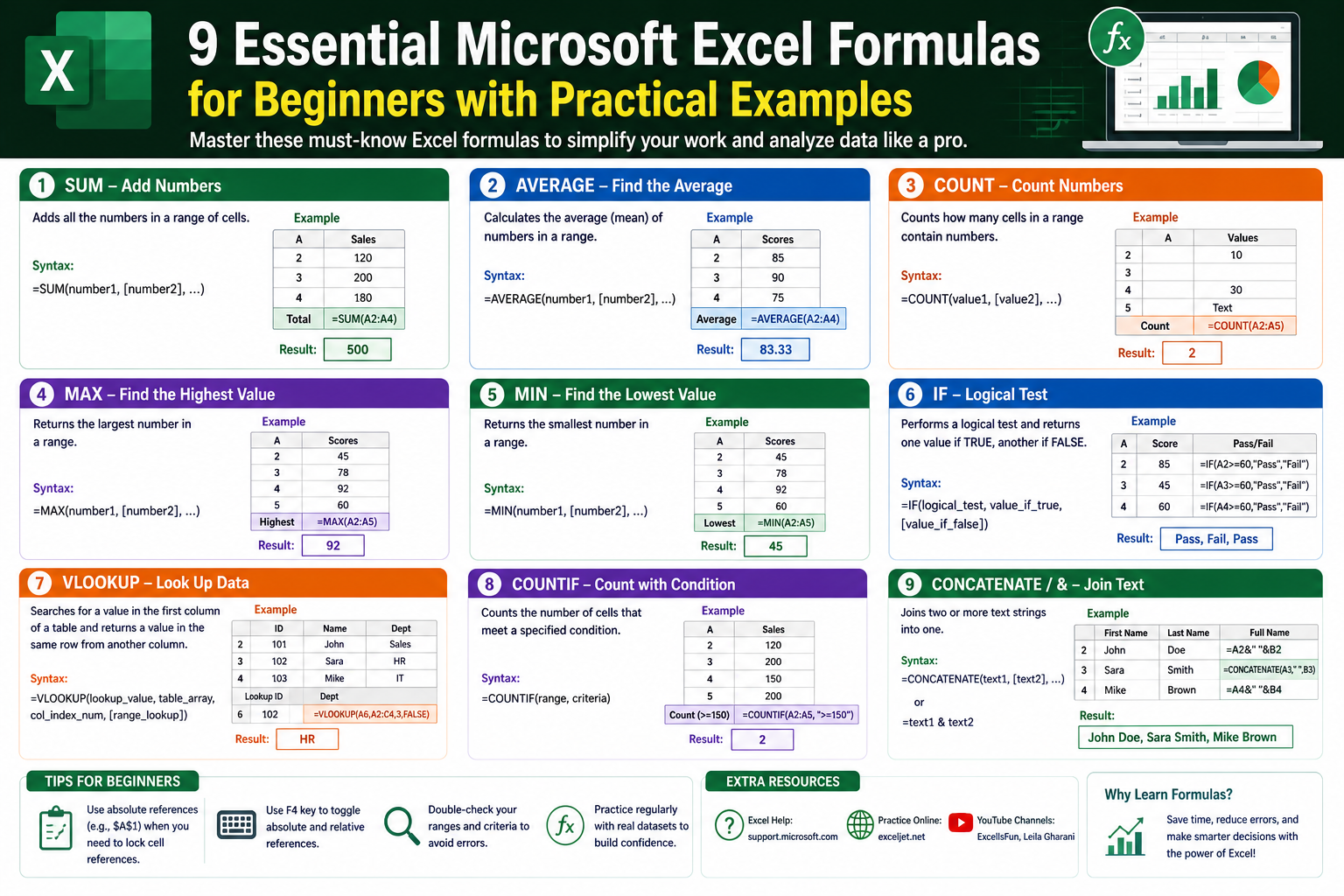
Excel becomes far more powerful once you understand how it thinks about data. At its core, Excel is not just a spreadsheet tool but a structured environment that reacts to patterns, conditions, and instructions you give through formulas. For beginners, the first step is learning how to count, filter, clean, and structure data properly before moving into more advanced analysis.
This section focuses on foundational formulas and concepts that shape almost everything else you will do in Excel. These include counting data efficiently, applying conditions to data, controlling how formulas behave when copied, performing basic conditional calculations, and cleaning messy inputs.
Understanding How Excel Interprets Data with COUNTA
One of the simplest yet most useful functions in Excel is COUNTA. This function helps you quickly understand how much data is present in a selected range, regardless of the type of content stored in the cells.
COUNTA works by counting every cell that is not empty. Unlike other counting methods that only focus on numbers, COUNTA treats text, symbols, dates, and any visible content as valid entries. This makes it especially useful when working with mixed datasets.
When you use COUNTA, you are essentially asking Excel: “How many cells in this range contain anything at all?”
This becomes useful in situations where datasets are inconsistent. For example, if you are working with a list of entries such as names, responses, or inventory records, COUNTA gives you a quick way to verify whether your dataset is complete or partially filled.
However, one important detail beginners often overlook is that COUNTA does not distinguish between meaningful data and accidental input. A cell containing a single space or invisible character is still counted as filled. This is why datasets that include formatting issues can produce misleading results when using COUNTA.
Because of this behavior, COUNTA is often the starting point for checking data completeness before applying more advanced cleaning or filtering functions.
Counting Specific Values with COUNTIF
While COUNTA tells you how much data exists, COUNTIF allows you to measure how often something specific appears. This introduces the idea of conditional counting, which is one of the most important analytical skills in Excel.
COUNTIF works by scanning a range of cells and checking each one against a defined condition. Instead of counting everything, it only counts values that meet your criteria.
This makes it extremely useful in real-world situations such as tracking how many times a product appears in a list, how many students passed an exam, or how many entries match a particular category.
The logic behind COUNTIF is simple: you define a range and then specify what Excel should look for within that range. Excel then evaluates each cell individually and builds a total based on matches.
Unlike COUNTA, which is passive, COUNTIF is selective. It introduces logic into your spreadsheet, allowing you to filter data without physically rearranging it.
Beginners often find COUNTIF powerful because it replaces manual counting. Instead of scrolling through large datasets and manually tallying values, Excel does the work instantly and accurately.
Another important aspect of COUNTIF is that it relies heavily on consistent data formatting. If values are spelled differently, contain extra spaces, or are inconsistently formatted, COUNTIF may miss matches. This is where data preparation becomes important.
Understanding How Excel Controls Formulas with Absolute and Relative References
One of the most important concepts in Excel is how cell references behave when formulas are copied or moved. Without understanding this, even simple formulas can produce unexpected results.
Excel uses two main types of references: relative and absolute.
A relative reference changes when a formula is copied to another cell. This means Excel automatically adjusts the cell positions based on where the formula is moved. This behavior is useful when you want calculations to follow a pattern across rows or columns.
An absolute reference, on the other hand, stays fixed. It does not change when copied. This is done by locking the row, column, or both, ensuring that the formula always points to the same cell or range.
Beginners often struggle with this concept because Excel’s automatic adjustments can feel unpredictable. However, once understood, it becomes one of the most powerful tools for building scalable spreadsheets.
For example, when applying a formula across multiple rows that all depend on a single reference value, absolute referencing ensures that the formula always points to the correct source.
On the other hand, relative referencing is useful when working with row-by-row calculations where each row needs to behave independently.
There are also mixed references, where either the row or column is fixed while the other remains flexible. This is useful in structured tables where one dimension changes but the other remains constant.
Understanding how references behave is essential for building reliable spreadsheets that do not break when expanded or copied.
Applying Conditional Logic with SUMIF
Once you understand how to count data, the next step is learning how to perform conditional calculations. SUMIF introduces this capability by allowing you to add values based on specific conditions.
Instead of summing everything in a range, SUMIF evaluates each entry and only includes values that match a defined criterion. This makes it extremely useful for financial summaries, inventory tracking, and performance analysis.
The structure of SUMIF is built around three parts: a range to evaluate, a condition to check, and a range of values to sum.
This separation of logic allows Excel to act almost like a filtering system combined with a calculator. It identifies relevant entries and then performs calculations only on those selected values.
For example, if you have a dataset containing sales records, SUMIF can help you calculate total sales for a specific product without manually filtering the data.
What makes SUMIF particularly useful is its ability to work across large datasets without requiring structural changes. You do not need to rearrange your data; instead, you define the logic directly within the formula.
However, beginners must be careful with alignment. The range used for evaluation and the range used for summing must correspond correctly. If they are mismatched, results can become inaccurate without obvious warning signs.
SUMIF is often one of the first steps toward understanding how Excel can perform analytical tasks rather than just storing data.
Cleaning Data Efficiently Using TRIM
Data in Excel is not always clean. In many cases, imported data or manually entered information contains unnecessary spaces that can disrupt calculations and analysis. The TRIM function helps solve this problem by removing extra spaces from text.
TRIM focuses on cleaning text by removing unnecessary spacing at the beginning, end, and between words. This helps standardize data so that Excel can interpret it correctly.
While spaces may seem harmless, they can cause significant issues in data matching. Two values that look identical to the human eye may not match in Excel if one contains hidden spaces.
This becomes especially important when using functions like COUNTIF, VLOOKUP, or logical comparisons. Even a single extra space can prevent a match from occurring.
TRIM helps ensure consistency across datasets. It is often used as a preparation step before performing analysis or applying formulas.
In real-world data scenarios, TRIM is frequently combined with other cleaning functions to ensure that text data is fully standardized before evaluation.
By cleaning data early, users avoid many common errors that occur later in analysis workflows.
Combining Logical Thinking in Excel Formulas
As beginners start working with multiple formulas, they begin to see that Excel is not just about individual functions but about combining logic. Each formula interacts with data differently, and understanding how they work together is key to building stronger spreadsheets.
For example, COUNTA provides a broad overview of data presence, while COUNTIF narrows the focus to specific conditions. SUMIF goes a step further by performing calculations based on conditions, and TRIM ensures that the data being analyzed is clean and consistent.
Meanwhile, the concept of absolute and relative references acts as the foundation that allows all these formulas to scale across large datasets without breaking.
Together, these tools form the backbone of beginner-level Excel understanding. They represent the transition from manual spreadsheet handling to structured data analysis.
Building Confidence with Repeated Application of Core Functions
One of the most important aspects of learning Excel is repetition. These foundational functions are not meant to be understood once and forgotten. Instead, they become intuitive through repeated use in different scenarios.
As users continue working with datasets, they begin to recognize patterns where each function is most effective. Counting functions help verify data integrity, conditional functions help filter insights, and cleaning functions ensure accuracy.
Over time, this creates a mental framework for approaching spreadsheet problems. Instead of manually searching for answers, users begin to think in terms of logic, conditions, and structured evaluation.
This shift in thinking is what separates basic spreadsheet usage from analytical proficiency.
Applying Logical Thinking and Data Matching in Excel for Deeper Analysis
Once the basic foundations of Excel are understood, the next stage is learning how to make data “think.” This means introducing logic, comparisons, and structured decision-making into spreadsheets. At this level, Excel begins to behave less like a calculator and more like a decision engine that evaluates conditions and returns meaningful outcomes.
This section focuses on logical functions, text searching techniques, conditional evaluation, and data matching approaches that allow beginners to move beyond simple counting and cleaning. These tools are essential for transforming raw data into structured insights.
Introducing Logical Thinking with IF Statements
The IF function is one of the most important building blocks in Excel because it introduces decision-making into spreadsheets. Instead of simply calculating values, Excel can now evaluate conditions and return different results based on whether those conditions are met.
At its core, the IF function works like a simple rule system. You define a condition, and Excel checks whether that condition is true or false. Based on the outcome, it returns one of two possible results.
This structure allows spreadsheets to behave dynamically. Instead of static outputs, results change depending on the input data.
For example, IF statements can be used to determine whether a value meets a threshold, classify data, or assign labels based on conditions.
What makes IF powerful is its flexibility. It is not limited to numbers; it can also evaluate text, dates, and logical expressions. This makes it one of the most widely used functions in Excel.
Beginners often start by using simple IF statements, but as they become more comfortable, they begin nesting multiple conditions together. This creates more advanced decision structures that can evaluate complex scenarios.
However, it is important to maintain clarity when using IF statements. As complexity increases, readability decreases, so structuring logic carefully becomes essential.
Expanding Logical Comparisons with Operators
Logical operators are the foundation of decision-making in Excel. These operators allow comparisons between values, enabling IF statements and other logical functions to evaluate conditions.
Excel uses standard comparison symbols such as equal to, not equal to, greater than, and less than. These symbols form the basis of logical testing.
When combined with IF statements, these operators allow spreadsheets to answer questions such as whether a value meets a requirement, falls within a range, or matches a condition.
For example, a greater-than operator can determine whether a score passes a threshold. A less-than operator can identify values below a limit. Equality operators can confirm exact matches.
These comparisons are simple individually, but when combined with IF statements, they become powerful decision-making tools.
Understanding how to structure logical conditions correctly is essential for avoiding errors in results. Even small mistakes in logic can lead to incorrect outputs across large datasets.
Searching Within Text Using Combined Functions
Excel is not limited to numeric analysis. It also provides powerful tools for working with text. One of the most useful techniques is searching within text strings to determine whether specific patterns or words exist.
This is achieved by combining functions that evaluate text position and logical interpretation. Instead of manually scanning text entries, Excel can automatically detect whether certain characters or words are present.
This type of analysis is especially useful when working with large datasets containing descriptions, notes, or user-generated content.
The search process works by scanning each cell and identifying whether the target text exists within it. If found, Excel returns a positive result; if not, it returns a negative or error-based outcome.
However, raw search results are not always user-friendly. This is why logical wrapping functions are often used to convert technical outputs into simple TRUE or FALSE values.
This transformation makes results easier to interpret and integrate into other formulas.
Text searching is particularly useful in filtering datasets, tagging entries, and identifying patterns within large bodies of text.
Converting Search Results into Logical Outputs
When Excel performs a text search, the result is not always immediately usable in decision-making. Instead of a simple TRUE or FALSE, it may return numeric positions or error values.
To solve this, logical functions are used to interpret these results. This allows Excel to convert technical outputs into meaningful logical responses.
For example, if a search function returns a number, it indicates that the text was found. If it returns an error, it means the text was not present.
By wrapping this output in a logical evaluation function, Excel can convert these results into a consistent format.
This process is important because it allows search results to be used inside IF statements, filters, and conditional calculations.
Without this conversion, search results would remain limited to standalone outputs rather than integrated analytical tools.
This technique is widely used in data validation, keyword detection, and content classification.
Understanding Data Matching with Exact Comparisons
While partial text searches are useful, there are situations where exact matching is required. This ensures that values are identical in every way, including spacing and formatting.
Exact matching is particularly important in structured datasets where accuracy is critical. Even minor differences in formatting can lead to incorrect matches.
Excel provides tools that allow a strict comparison between two values. These comparisons evaluate both content and structure, ensuring complete alignment.
Exact matching is commonly used in identity verification, record matching, and data validation processes.
However, strict matching can sometimes produce unexpected results when data contains hidden inconsistencies such as extra spaces or formatting variations.
This is why data cleaning functions are often used before performing exact comparisons.
Using IF Statements to Control Search Outcomes
One of the most powerful combinations in Excel is using logical search functions inside IF statements. This allows search results to directly influence decision-making outputs.
Instead of simply identifying whether a value exists, Excel can use that information to assign labels, categorize data, or trigger specific outputs.
This combination transforms Excel from a passive analysis tool into an active decision system.
For example, if a search function detects a keyword in a text field, an IF statement can classify that entry into a specific category.
This is particularly useful in datasets where manual classification would be time-consuming.
By combining search logic with conditional evaluation, Excel can automate large parts of data processing.
Building Conditional Workflows with Nested Logic
As users become more advanced, they begin combining multiple IF statements. This creates nested logic structures where multiple conditions are evaluated in sequence.
Nested logic allows Excel to handle complex decision trees. Instead of a single condition, multiple layers of evaluation can determine outcomes.
This approach is useful when data must be categorized into multiple levels or when decisions depend on several factors.
However, nested logic must be structured carefully. As complexity increases, readability decreases, making it harder to debug errors.
To maintain clarity, logical conditions should be organized in a structured and predictable way.
Even though Excel allows deep nesting, it is often more effective to simplify logic wherever possible.
Introduction to Data Lookup Thinking
At this stage of learning, users begin transitioning from logical evaluation to data retrieval. This introduces the concept of looking up values from structured datasets.
Instead of manually searching for information, Excel can automatically locate and retrieve related data based on a reference value.
This concept is foundational for merging datasets and building relational structures within spreadsheets.
Lookup techniques allow users to connect different tables and extract relevant information without manual intervention.
This is especially useful when working with large datasets where manual cross-referencing would be inefficient.
Understanding the Structure of Lookup Logic
Lookup systems operate by identifying a key value and then searching for that value within a defined dataset. Once found, Excel retrieves related information from the same row or structure.
This creates a relationship between datasets, allowing information to be connected dynamically.
Lookup logic requires careful structure. The search column must be properly organized, and the output structure must align with the dataset.
If the structure is inconsistent, lookup results may become inaccurate or fail.
Understanding how data is structured is just as important as understanding how the lookup function works.
Handling Errors in Logical and Lookup Operations
As formulas become more complex, errors become more common. These errors can occur due to missing data, mismatched formats, or incorrect logic.
Instead of allowing errors to break analysis, Excel provides tools to handle them gracefully.
Error-handling functions allow users to replace error messages with meaningful outputs. This ensures that spreadsheets remain readable and functional even when issues occur.
This is particularly useful when working with large datasets where missing or inconsistent data is common.
By managing errors effectively, users can maintain clean and reliable outputs even in imperfect datasets.
Combining Logical Functions for Practical Analysis
At this stage, Excel begins to function as a full analytical tool. Logical functions, search techniques, and lookup structures work together to process, evaluate, and interpret data.
Each function contributes a different layer of intelligence. Logical functions evaluate conditions, search functions identify patterns, and lookup structures retrieve related data.
When combined, these tools allow Excel to perform tasks that would otherwise require manual effort or external systems.
This integration of functions marks a major step in Excel proficiency. It transforms spreadsheets from static tables into dynamic analytical systems.
Developing Analytical Thinking Through Formula Design
As users continue practicing these techniques, they begin to develop a new way of thinking about data. Instead of viewing spreadsheets as collections of numbers and text, they begin to see them as structured systems of logic.
Each formula becomes part of a larger workflow. Decisions are no longer manual but automated through structured rules.
This shift in thinking is essential for progressing to more advanced Excel techniques. It forms the foundation for working with large datasets, building dashboards, and performing complex analysis.
By mastering logical functions and data matching techniques, users gain the ability to interpret data in a structured and meaningful way without relying on manual processing.
Building Practical Excel Workflows Through Data Integration, Error Control, and Advanced Formula Thinking
At this stage of Excel learning, the focus shifts away from individual functions and moves toward how those functions work together inside real workflows. Instead of treating formulas as isolated tools, beginners start to understand them as interconnected parts of a larger system that transforms raw data into structured, meaningful output.
This part explores how Excel behaves when multiple functions interact, how data retrieval becomes more dynamic, how error handling stabilizes complex models, and how structured thinking allows spreadsheets to scale beyond simple tasks. The goal is to develop a practical mindset where Excel is not just a calculation tool but a system for organizing and interpreting information.
Retrieving Connected Data Through Structured Lookup Thinking
When working with multiple datasets, one of the most important challenges is connecting related information. In real-world scenarios, data is rarely stored in a single table. Instead, it is distributed across multiple lists that must be connected logically.
This is where structured lookup thinking becomes essential. Rather than manually searching for matching values, Excel can automatically retrieve related information based on a shared reference point.
This approach allows users to build relationships between datasets. A single identifier can unlock multiple pieces of related data stored elsewhere in the spreadsheet.
For example, a product code in one table can be used to retrieve pricing, category, or inventory information from another table. This eliminates the need for manual cross-referencing and reduces the risk of human error.
The key idea behind structured lookup thinking is consistency. The data must be organized predictably so that Excel can reliably locate matching values.
Once this structure is in place, spreadsheets begin to behave more like relational systems, where different tables communicate with each other through shared identifiers.
Strengthening Data Retrieval with Multi-Column Awareness
As data becomes more complex, retrieval is no longer limited to a single output. Instead, multiple pieces of related information may need to be extracted from different parts of a dataset.
This introduces the concept of multi-column awareness, where a single reference value can be used to access different types of information depending on the context.
For example, a single customer ID might be linked to name, location, purchase history, and account status. Each of these values exists in a different column, but they are all tied to the same reference key.
Understanding how Excel navigates across columns is essential for building accurate retrieval systems. The structure of the dataset determines how effectively information can be extracted.
When datasets are well-organized, retrieval becomes predictable and efficient. When they are inconsistent, even simple lookups can produce unreliable results.
This highlights an important principle in Excel: structure determines function. The way data is arranged directly impacts how effectively it can be used.
Managing Incomplete Data Through Controlled Error Handling
In real-world datasets, missing or inconsistent data is unavoidable. Cells may be blank, values may not exist, or references may not match. Instead of allowing these issues to disrupt analysis, Excel provides ways to manage them gracefully.
Controlled error handling ensures that spreadsheets remain functional even when data is incomplete. Instead of displaying disruptive error messages, Excel can substitute them with meaningful outputs.
This approach is essential when building reports or dashboards where clarity is important. A single error can break the visual flow of a dataset, making it difficult to interpret.
By controlling how errors are displayed, users can maintain clean and readable outputs even when the underlying data is imperfect.
This concept also encourages proactive thinking. Instead of reacting to errors after they appear, formulas are designed in a way that anticipates potential issues.
Over time, this leads to more stable and reliable spreadsheet models.
Designing Flexible Workflows with Conditional Data Paths
As Excel usage becomes more advanced, users begin designing workflows where data follows different paths depending on conditions.
This means that instead of producing a single fixed result, a spreadsheet can adapt its output based on the nature of the input data.
Conditional data paths allow Excel to behave dynamically. Depending on whether certain conditions are met, different calculations or outputs can be triggered.
This is especially useful in decision-making models where outcomes depend on multiple factors.
For example, a dataset might categorize values differently depending on thresholds, labels, or text content. Each condition creates a separate logical path that determines how data is processed.
This approach transforms Excel from a static tool into a responsive system capable of adapting to different scenarios.
Improving Data Consistency Through Pre-Processing Techniques
Before performing analysis, it is important to ensure that the data is consistent. Inconsistent formatting, extra spaces, and irregular entries can all lead to inaccurate results.
Pre-processing refers to the steps taken to clean and standardize data before applying analytical functions.
This includes removing unwanted spaces, ensuring consistent text formatting, and aligning data structures across columns.
When data is properly pre-processed, formulas behave more predictably. Matching functions become more accurate, conditional logic becomes more reliable, and retrieval processes become more stable.
Pre-processing is often overlooked by beginners, but it plays a critical role in ensuring data quality.
Without it, even well-designed formulas can produce misleading results.
Combining Multiple Functions into Unified Analysis Systems
As users become more experienced, they begin combining multiple functions into a single analytical system. Instead of using formulas independently, they start building layered logic structures where each function contributes to a larger outcome.
For example, a dataset might first be cleaned, then evaluated conditionally, and finally used to retrieve related information from another table.
Each step builds on the previous one, creating a structured flow of data processing.
This layered approach allows Excel to handle more complex tasks without requiring external tools.
It also encourages modular thinking, where each formula has a specific role within a larger system.
By combining functions strategically, users can build powerful analytical models inside a single spreadsheet.
Enhancing Decision Logic with Multi-Condition Evaluation
As datasets grow more complex, decisions often depend on multiple conditions rather than a single factor.
This requires multi-condition evaluation, where several criteria are assessed before producing a result.
Instead of relying on a single rule, Excel evaluates combinations of conditions to determine outcomes.
This allows for more precise classification and analysis.
For example, data might need to meet multiple requirements before being categorized in a certain way. Each condition adds another layer of logic that refines the final output.
This approach reflects real-world decision-making more accurately, where outcomes are rarely based on a single factor.
Structuring Spreadsheets for Scalability and Growth
A well-designed spreadsheet is not just functional for small datasets but also scalable for larger ones.
Scalability means that as data grows, formulas continue to work without requiring major adjustments.
This depends heavily on how the spreadsheet is structured. Consistent formatting, clear separation of data, and logical organization all contribute to scalability.
When spreadsheets are structured properly, new data can be added without breaking existing formulas.
This reduces maintenance effort and improves long-term usability.
Scalability is one of the key differences between beginner-level spreadsheets and professional-level models.
Reducing Formula Complexity Through Logical Simplification
As formulas become more complex, readability and maintainability can become issues. Overly complicated logic can make spreadsheets difficult to debug and update.
Logical simplification involves reducing unnecessary complexity while preserving functionality.
This can be achieved by breaking down large formulas into smaller steps or by restructuring logic to make it more intuitive.
Simplified formulas are easier to understand, easier to maintain, and less prone to errors.
They also improve performance in larger datasets, where overly complex logic can slow down calculations.
The goal is not to reduce functionality but to make logic clearer and more efficient.
Understanding How Excel Handles Data Flow Internally
Behind every formula, Excel follows a structured process to evaluate and calculate results. Understanding this data flow helps users design better spreadsheets.
When a formula is entered, Excel first evaluates references, then processes logic, and finally returns a result.
This sequence is repeated for every cell that contains a formula.
When multiple formulas depend on each other, Excel creates a dependency chain. Changes in one cell can trigger recalculations in others.
Understanding this flow helps users predict how changes in data will affect overall results.
It also helps in identifying performance issues in large spreadsheets.
Building Analytical Confidence Through Repeated Application
As users continue working with Excel, they begin to develop confidence in how formulas behave across different scenarios.
This confidence comes from repeated exposure to real datasets and problem-solving situations.
Over time, users stop thinking about individual functions and start thinking about how to structure solutions.
This shift represents a deeper understanding of Excel as a system rather than a collection of tools.
At this stage, users are no longer just applying formulas—they are designing logic systems that process, evaluate, and organize information automatically.
Transitioning from Formula Usage to Analytical Design Thinking
The final stage of Excel proficiency involves moving beyond formula usage and into analytical design thinking.
This means designing spreadsheets that not only calculate results but also guide interpretation and decision-making.
Instead of focusing on individual outputs, attention shifts to how data flows through the system.
Each formula becomes part of a larger structure that supports analysis, reporting, and insight generation.
This approach transforms Excel from a reactive tool into a proactive analytical environment.
It allows users to build systems that adapt, scale, and evolve with data over time.
Developing a Structured Approach to Data Interpretation
At a higher level, Excel becomes a framework for structured thinking. Data is no longer just stored—it is interpreted, filtered, and transformed through logical processes.
Each step in the spreadsheet contributes to a larger analytical narrative.
Cleaning ensures accuracy, logic ensures meaning, and retrieval ensures connectivity.
Together, these processes create a structured approach to understanding information.
This structured mindset is what ultimately defines advanced Excel proficiency.
Advanced Workflow Thinking: Turning Excel into a Decision System
As Excel usage becomes more mature, one of the most important realizations is that spreadsheets are not just static containers of data—they can behave like structured decision systems. When formulas, conditions, and data structures are designed carefully, Excel begins to simulate logic flows that resemble simple automated systems used in business environments.
This means a spreadsheet can take an input, evaluate multiple conditions, clean or transform the data, and produce a meaningful output without manual intervention. The real value at this stage is not in individual functions but in how seamlessly they interact.
For example, a dataset might begin with raw entries that are inconsistent or incomplete. Instead of fixing each issue manually, the system can apply cleaning logic automatically, standardizing values before any analysis occurs. Once cleaned, the same dataset can be evaluated using conditional logic to categorize or classify entries. After classification, lookup mechanisms can retrieve related contextual information from other parts of the dataset.
This layered approach creates a pipeline effect, where data moves through multiple transformation stages. Each stage has a specific purpose, and together they form a complete analytical workflow.
Creating Structured Decision Layers Within Spreadsheets
One of the most powerful ideas in advanced Excel usage is the concept of decision layering. Instead of relying on a single formula to determine an outcome, multiple layers of logic are applied sequentially.
Each layer evaluates a different aspect of the data. The first layer might check for completeness, ensuring that required fields are not missing. The second layer might classify the data based on thresholds or categories. The third layer might retrieve related information from another dataset. The final layer might handle exceptions or unexpected values.
This layered approach improves clarity because each logical step is separated from the others. It also improves accuracy because each stage focuses on a specific responsibility rather than trying to handle everything at once.
When decision layers are structured properly, Excel becomes easier to debug. If something goes wrong, the issue can be isolated to a specific stage of the workflow rather than the entire system.
This concept mirrors structured programming logic, where complex problems are broken down into smaller, manageable components.
Strengthening Analytical Reliability Through Consistency Rules
As datasets grow, maintaining consistency becomes more important than adding complexity. Even the most advanced formulas will fail if the underlying data is inconsistent.
Consistency rules refer to the standards applied to ensure that data follows predictable formats. This includes uniform text formatting, standardized categories, and aligned data structures.
When consistency rules are enforced, Excel functions behave more reliably. Matching becomes accurate, conditions are evaluated correctly, and retrieval processes function without unexpected errors.
Without consistency, even simple formulas can produce misleading results. This is because Excel evaluates data exactly as it is presented, not as it is intended to be interpreted.
Establishing consistency early in a spreadsheet design reduces long-term maintenance and improves analytical stability.
Designing Spreadsheets for Interpretability, Not Just Functionality
A common mistake in Excel usage is focusing solely on whether a formula works, rather than whether it is understandable.
At advanced levels, interpretability becomes just as important as functionality. A spreadsheet that produces correct results but is difficult to understand is harder to maintain, update, and troubleshoot.
Interpretability refers to how easily someone can understand the logic behind a spreadsheet without needing to decode complex formulas.
This can be achieved through clear structure, logical separation of steps, and avoiding overly dense formula constructions.
When spreadsheets are designed with interpretability in mind, they become collaborative tools rather than individual systems. Others can understand, modify, and extend the logic without breaking functionality.
This is especially important in professional environments where spreadsheets are shared and reused across teams.
Evolving from Formula Execution to Problem Structuring
At a more advanced stage, Excel users stop thinking in terms of individual formulas and begin thinking in terms of problem structures.
Instead of asking “what formula should I use?”, the question becomes “how should this problem be broken down into logical steps?”
This shift represents a deeper understanding of analytical thinking. It allows users to approach complex datasets with a structured mindset rather than a trial-and-error approach.
Problem structuring involves identifying inputs, defining transformation steps, and determining desired outputs.
Once this structure is clear, formulas naturally fall into place as tools that implement each step.
This approach reduces confusion and improves efficiency, especially when working with large or complex datasets.
Enhancing Workflow Stability Through Controlled Dependencies
As spreadsheets grow more interconnected, dependencies between cells become more important. A change in one part of the spreadsheet can affect multiple downstream results.
Controlled dependencies ensure that these relationships are intentional and predictable. Instead of accidental or hidden dependencies, each relationship is clearly defined.
This improves stability because users understand how changes propagate through the system.
When dependencies are uncontrolled, small changes can lead to unexpected results in unrelated parts of the spreadsheet.
By designing controlled dependencies, Excel models become more reliable and easier to maintain.
Developing Adaptive Thinking Through Formula Interaction
One of the most important skills at this stage is adaptive thinking. This refers to the ability to understand how formulas interact dynamically rather than in isolation.
When multiple formulas depend on each other, changes in one area can influence outcomes in another.
Adaptive thinking allows users to anticipate these interactions and design spreadsheets that respond predictably to changes.
This reduces errors and improves system resilience.
Instead of reacting to problems after they occur, users begin designing systems that adapt to change automatically.
Conclusion
Excel becomes truly valuable not when users memorize individual formulas, but when they understand how those formulas work together to shape structured thinking. Across the concepts explored—from basic counting and data cleaning to logical evaluation, text searching, conditional calculations, and structured data retrieval—the central theme is transformation. Raw data on its own has limited meaning, but once it is organized, filtered, and evaluated through logical systems, it becomes actionable information.
The journey from beginner to intermediate Excel usage is essentially a shift in mindset. Early on, functions like COUNTA and COUNTIF help users understand how data is distributed and how frequently certain values appear. These tools build awareness of structure and quantity. As users progress, logical functions such as IF statements introduce decision-making capability, allowing spreadsheets to respond differently depending on conditions. This is where Excel begins to move from static storage to dynamic analysis.
Further progression introduces data matching and retrieval concepts, where Excel connects related information across different parts of a dataset. This ability to link data creates a more integrated view of information, allowing users to analyze relationships rather than isolated values. At the same time, cleaning functions like TRIM ensure that the data being analyzed is accurate and consistent, which is essential for reliable results.
What makes these tools powerful is not their individual function, but their ability to work together. A well-structured spreadsheet often combines multiple layers of logic: cleaning data first, then applying conditions, then retrieving or calculating results, and finally handling errors or exceptions. This layered approach turns Excel into a structured workflow system rather than a simple calculation tool.
As users become more comfortable with these concepts, they naturally begin to think in terms of systems rather than individual steps. Instead of asking how a single formula works, they begin to ask how data flows through multiple stages of transformation. This shift marks a significant step toward analytical maturity.
Ultimately, mastering Excel is less about learning every function and more about understanding how to structure problems logically. Once this mindset is developed, users can adapt to new functions and scenarios with ease, because the foundation of structured thinking remains the same.