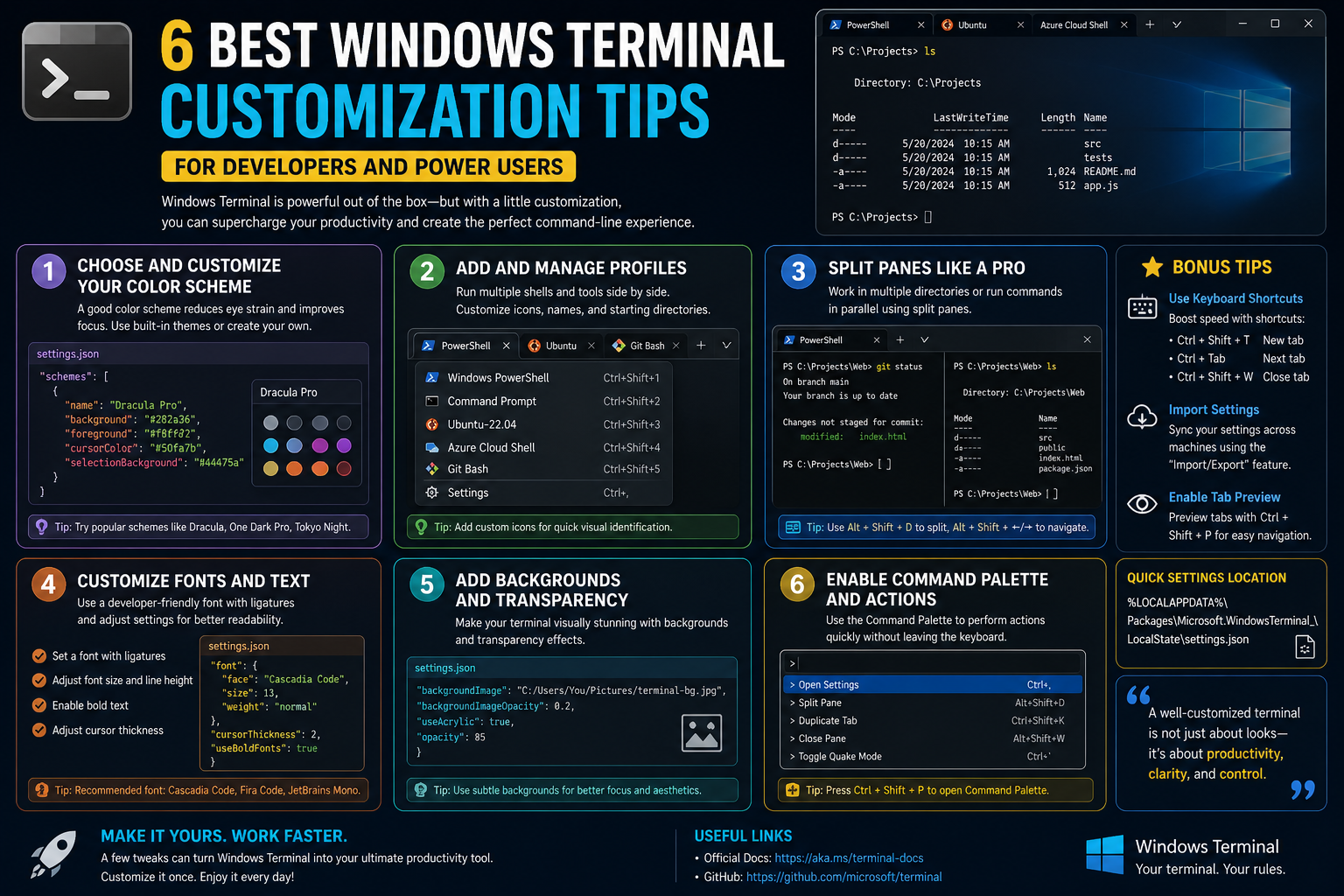
For many years, working with command-line interfaces on Windows meant relying on older console systems that were functional but limited in flexibility and user experience. These traditional environments were built around a single, rigid window system that offered minimal customization and little support for modern developer workflows. While they served their purpose for basic tasks, they gradually became less aligned with the evolving needs of developers, system administrators, and advanced users who increasingly required more efficient, customizable, and visually adaptive tools.
The introduction of Windows Terminal represents a major shift in this experience. Instead of being constrained by older architecture, users now have access to a unified terminal environment that supports multiple command-line tools within a single interface. This includes shells such as PowerShell, command prompt environments, and other command-line utilities that can run side by side in a tabbed or split-pane structure.
What makes this shift significant is not just the consolidation of tools but the ability to deeply personalize the environment. The terminal is no longer a static interface; it becomes a configurable workspace that adapts to individual preferences and workflows.
The Role of Windows Terminal in Modern Computing Workflows
Modern computing environments are heavily dependent on automation, cloud interaction, and development pipelines. As a result, the command line has become more important than ever. It is often the central hub where scripts are executed, systems are managed, and applications are deployed.
Windows Terminal supports this reality by providing a more efficient way to interact with multiple environments simultaneously. Instead of switching between separate windows or tools, users can work across different shells within a single interface. This improves productivity by reducing context switching and enabling smoother transitions between tasks.
The design philosophy behind this terminal environment focuses on performance, flexibility, and extensibility. It is not just about running commands but about creating a workspace that adapts to complex technical needs. Whether someone is managing servers, writing scripts, or building applications, the terminal becomes a central control point.
Multi-Shell Integration and Unified Access
One of the most powerful aspects of Windows Terminal is its ability to host multiple command-line environments in one place. Traditionally, users had to open separate applications for different shells. For example, PowerShell would run in one window, while other command-line tools might require a separate console instance.
With a unified terminal system, these environments can coexist. Each shell runs in its own tab or pane, allowing users to switch between them seamlessly. This reduces friction in workflows where multiple environments are required.
This integration also makes it easier to manage complex tasks that involve different tools. For instance, a user might run administrative commands in one shell while simultaneously executing development scripts in another. The ability to do this within a single interface simplifies task management and improves overall efficiency.
The Importance of Configuration Through Structured Settings
A defining feature of modern terminal systems is their reliance on structured configuration files. Instead of relying on graphical menus or scattered settings panels, most customization is handled through a centralized configuration file often stored in the user profile.
This file uses a structured data format that defines how the terminal behaves, looks, and interacts with user input. It controls everything from visual themes to keyboard shortcuts and default startup environments.
The advantage of this approach is consistency. Once a configuration is defined, it can be reused, modified, or transferred without needing to manually adjust settings through multiple interfaces. It also enables advanced users to fine-tune their environment with precision.
For users working in structured text editors that support schema recognition, this configuration process becomes even more intuitive. These editors can automatically suggest valid options, reduce errors, and guide users through complex settings structures. This reduces the need to constantly refer to documentation and helps users build configurations more confidently.
Customization as a Core Design Principle
Unlike older terminal systems where appearance and behavior were mostly fixed, modern terminal environments prioritize customization as a core feature. This includes visual customization such as color schemes and font rendering, as well as functional customization such as input behavior and command execution patterns.
Customization is not just about aesthetics. It directly impacts productivity. A well-configured terminal can reduce cognitive load, improve readability, and make frequent operations faster to execute. For example, users who work with multiple environments may assign distinct visual themes to each profile, making it easier to distinguish between them at a glance.
This level of personalization transforms the terminal from a generic tool into a tailored workspace. Each user can shape their environment according to their specific needs, whether that involves development, system administration, or general computing tasks.
Understanding Profiles and Environment Separation
Within a modern terminal system, profiles play an important role in organizing different environments. A profile defines a specific shell or command-line instance along with its associated settings. For example, one profile might represent a PowerShell environment, while another might represent a command prompt or other shell type.
Each profile can have its own configuration, including visual appearance, default directory, and behavior settings. This separation allows users to maintain multiple working environments without interference between them.
Profiles also make it easier to structure workflows. A user can quickly switch between different contexts depending on the task at hand. For example, one profile might be used for system administration tasks, while another is used for software development. This separation reduces confusion and helps maintain organized workflows.
Visual Customization and the Importance of Readability
Visual design plays a significant role in how efficiently a terminal can be used. A well-designed interface reduces strain and improves focus, especially during long working sessions. Modern terminal systems allow users to customize color schemes, fonts, and background styles to create a more comfortable viewing experience.
Color schemes are particularly important because they influence how information is perceived. Different themes can highlight syntax, differentiate output types, and improve readability in different lighting conditions. Some users prefer darker themes for reduced eye strain, while others choose high-contrast themes for clarity.
Fonts also play a crucial role. Support for modern font systems allows terminals to render a wide range of characters, including symbols and international text. This improves compatibility and ensures that output is displayed correctly regardless of content type.
The Emergence of Tab-Based Navigation
One of the most noticeable improvements in modern terminal environments is the introduction of tab-based navigation. Instead of opening multiple windows for different tasks, users can now organize sessions into tabs within a single interface.
This approach significantly improves workspace organization. Tabs allow users to keep related tasks grouped together while still maintaining separation between different environments. For example, one tab might be used for running background processes, while another is used for interactive development work.
Tab management also reduces desktop clutter. Instead of managing multiple overlapping windows, users can focus on a single terminal application that contains all necessary sessions.
Pane-Based Workflow and Parallel Execution
Beyond tabs, modern terminals also introduce the concept of panes. Panes allow multiple command-line sessions to exist within a single tab, divided either vertically or horizontally. This enables true parallel workflows within a single view.
Pane-based layouts are especially useful for monitoring and multitasking. For example, a user might run a live log output in one pane while executing commands in another. This eliminates the need to constantly switch between windows or tabs.
The ability to resize and navigate between panes enhances flexibility. Users can structure their workspace based on task priority, giving more screen space to critical processes while keeping secondary tasks visible in smaller sections.
Keyboard-Driven Efficiency and Input Customization
A key aspect of terminal productivity lies in keyboard efficiency. Modern terminal systems allow users to define custom keyboard shortcuts for a wide range of actions. This includes creating new tabs, splitting panes, switching focus, and executing commands.
Custom key bindings are particularly powerful because they allow users to tailor interactions to their personal workflow. Instead of relying on default shortcuts, users can design input patterns that match their habits and speed up repetitive tasks.
This level of customization also supports advanced workflows. Users who frequently perform specific operations can assign dedicated shortcuts, reducing the time required to execute common actions.
The Concept of Command Execution Abstraction
In modern terminal environments, commands are no longer limited to simple text input. Instead, they can be structured as actions that include additional parameters and behaviors. This abstraction allows for more complex operations to be triggered through unified input methods.
Simple commands might execute directly based on a key press, while more complex commands may include additional configuration parameters. This flexibility allows the terminal to support a wide range of operations without requiring separate interfaces for each one.
This structured approach also improves consistency. Regardless of complexity, all commands follow a predictable format, making them easier to learn and use over time.
The Command Palette as a Central Navigation Tool
Another important feature in modern terminal design is the command palette. This tool provides a searchable interface for accessing all available commands within the terminal environment.
Instead of memorizing shortcuts or navigating through menus, users can simply search for the action they need. This significantly reduces the learning curve and improves accessibility for new users.
The command palette also serves as a discovery tool. Users can explore available functionality without needing prior knowledge of specific commands or shortcuts. This encourages experimentation and helps users become more familiar with the capabilities of the terminal environment.
Structural Flexibility Through JSON-Based Configuration
The use of structured configuration formats allows for a high degree of flexibility in customizing terminal behavior. This structure is typically hierarchical, meaning that settings can be grouped logically based on their function.
This approach makes it easier to manage complex configurations. Instead of dealing with scattered settings, users can modify a single structured file that defines the entire terminal environment.
This system also supports scalability. As new features are introduced, they can be integrated into the existing configuration structure without disrupting older settings. This ensures long-term compatibility and adaptability.
The Evolution Toward a Personalized Command-Line Workspace
The modern terminal is no longer just a tool for executing commands. It has evolved into a fully customizable workspace that adapts to individual workflows and preferences. Every aspect of the environment, from visual design to input behavior, can be adjusted to create a more efficient and comfortable experience.
This evolution reflects a broader shift in computing toward personalization and flexibility. Users are no longer expected to adapt to rigid systems. Instead, systems are designed to adapt to users.
As a result, the terminal becomes more than just a technical interface. It becomes a personalized environment where productivity, efficiency, and usability come together in a unified experience.
The Architecture Behind Modern Terminal Customization
A major strength of Windows Terminal lies in how it separates appearance, behavior, and execution into structured configuration layers. Instead of relying on hidden settings or scattered control panels, everything is defined in a unified configuration system that governs how the terminal behaves at launch, how it renders content, and how it responds to user interaction.
This structured approach makes customization both predictable and scalable. Every feature, from visual themes to keyboard behavior, is controlled through clearly defined settings that can be adjusted independently. This separation of concerns allows users to fine-tune individual aspects of the terminal without affecting unrelated functionality.
At a conceptual level, the terminal configuration behaves like a layered system. One layer defines profiles, another defines input behavior, another handles visual styling, and yet another manages startup behavior. Each layer interacts with the others but remains logically independent, allowing precise control over the environment.
Understanding Profiles as Independent Workspaces
Profiles are one of the most important concepts in Windows Terminal customization. A profile represents a complete environment configuration for a specific command-line shell. This includes the executable being used, the initial directory, appearance settings, and behavior rules.
Instead of thinking of profiles as simple shortcuts, it is more accurate to view them as fully independent workspaces. Each profile can behave differently, even if they share the same underlying system.
For example, a user might configure one profile for administrative system tasks and another for development work. These profiles can differ in font styling, background appearance, default shell commands, and even input behavior. This separation allows users to mentally categorize their work based on context.
Profiles also support inheritance-like behavior in practice, where common settings can be shared while still allowing individual overrides. This reduces duplication and ensures consistency across environments while still preserving flexibility.
Switching between profiles becomes a way of switching mental contexts. Instead of opening different applications, users remain within a single terminal environment while shifting their focus based on the active profile.
Startup Behavior and Initial Environment Control
When Windows Terminal launches, it does not simply open a blank interface. Instead, it loads a predefined startup configuration that determines which profile is active, how many tabs are opened, and what layout is used.
This startup behavior is highly customizable. Users can define whether the terminal opens with a default shell, a previously used session, or a specific profile dedicated to a task. This flexibility is particularly useful for users who rely on repetitive workflows.
For instance, someone working in development may prefer the terminal to open directly into a project environment, while a system administrator might prefer a clean shell ready for diagnostics. This eliminates repetitive setup steps and reduces friction at the beginning of a session.
Startup customization also extends to layout configuration. Users can define whether multiple panes should open automatically or whether specific tabs should be initialized. This allows the terminal to function as a pre-configured workspace rather than a blank starting point.
Visual Identity Through Themes and Color Structures
Visual customization is one of the most immediately noticeable aspects of Windows Terminal configuration. Themes define how text, backgrounds, and interface elements are displayed, allowing users to create a personalized visual identity for each environment.
Color schemes are not just aesthetic choices. They play an important functional role in readability and context separation. A well-designed theme helps distinguish between different types of output, such as commands, errors, and system messages.
Different profiles can use different color schemes, which allows users to visually separate environments at a glance. This becomes especially useful when multiple terminals are open simultaneously.
Themes also influence long-term usability. A carefully chosen color palette reduces eye strain and improves focus during extended use. Users often adjust brightness, contrast, and saturation levels to match their working conditions, whether in bright environments or low-light settings.
The flexibility of theme customization ensures that the terminal can adapt to both professional and personal preferences without restriction.
Font Rendering and Unicode Flexibility
Modern terminal environments place significant emphasis on text rendering quality. Unlike older systems that were limited to basic character sets, Windows Terminal supports a wide range of Unicode characters, enabling accurate rendering of symbols, international text, and specialized glyphs.
This support extends to emoji rendering as well, allowing modern communication styles to integrate seamlessly into terminal output. While emojis may seem unrelated to technical workflows, they can improve readability in logs, scripts, and notifications by providing visual cues.
Font selection plays a critical role in this experience. Different fonts affect spacing, readability, and character alignment. Monospaced fonts are commonly used because they ensure consistent alignment across columns of text, which is essential for command-line readability.
Users can choose fonts based on clarity, style, or personal preference. Some fonts are optimized for coding readability, while others focus on visual aesthetics. The flexibility to adjust font size and style allows users to optimize their environment for comfort and efficiency.
Input Behavior and Keyboard Mapping Systems
Keyboard interaction is one of the most powerful aspects of terminal customization. Instead of relying solely on default shortcuts, users can define custom key mappings that control nearly every aspect of terminal behavior.
These mappings allow users to create personalized workflows that match their habits. For example, frequent actions such as opening new tabs, splitting panes, or switching focus can be assigned to intuitive key combinations.
The structure of input customization supports both simple and complex actions. Simple actions involve direct commands triggered by a key combination, while complex actions may include additional parameters that modify behavior.
This flexibility transforms the keyboard into a control system for the entire terminal environment. Rather than navigating menus or using mouse input, users can execute advanced operations instantly through muscle memory.
Over time, this leads to significantly improved efficiency. Repetitive tasks become faster, and interaction with the terminal becomes more fluid and intuitive.
Pane Management as a Multi-Tasking Framework
Pane management introduces a powerful way to handle multiple processes within a single terminal window. Instead of switching between separate applications, users can divide their workspace into multiple sections, each running an independent session.
These panes can be arranged vertically or horizontally depending on the desired workflow. This layout flexibility allows users to design their workspace based on task complexity and focus requirements.
For example, one pane might display real-time logs while another runs commands, and a third monitors system performance. This creates a live, interactive environment where multiple processes can be observed simultaneously.
Pane navigation is designed to be efficient, allowing users to move between sections quickly using keyboard input. This reduces dependency on mouse interaction and keeps focus within the terminal environment.
The ability to duplicate sessions across panes also enhances workflow efficiency. Instead of reinitializing environments manually, users can replicate active sessions and continue working in parallel contexts.
Advanced Command Execution Models
Command execution in modern terminal systems is more flexible than in traditional environments. Instead of being limited to static text input, commands can be structured as dynamic actions that include additional parameters.
This allows for more sophisticated operations without requiring separate tools. Commands can be designed to behave differently depending on context, enabling a more intelligent interaction model.
For example, a single command may perform different actions depending on the active profile or selected pane. This contextual behavior reduces redundancy and simplifies workflow design.
Command execution also supports automation patterns. Frequently used operations can be abstracted into reusable actions that streamline repetitive tasks. This transforms the terminal into a semi-automated environment where complex workflows can be executed with minimal input.
Command Palette as a Discovery Interface
The command palette acts as a universal search and execution layer within the terminal environment. Instead of remembering specific shortcuts or navigating through configuration files, users can search for commands directly.
This feature significantly improves accessibility, especially for new users. It removes the need to memorize complex input structures and allows users to discover functionality through exploration.
The command palette also acts as a learning tool. As users type queries, they are presented with available actions, helping them understand what the terminal can do beyond their current usage patterns.
Over time, this leads to a deeper understanding of the environment and encourages users to adopt more advanced workflows.
Transparency and Visual Layering Effects
Modern terminal environments include support for visual effects such as transparency and layering. These features allow the terminal to blend visually with the desktop environment, creating a more integrated experience.
Transparency is controlled through opacity settings, which determine how much of the background is visible through the terminal window. This creates a layered visual effect that can reduce visual isolation and improve aesthetic appeal.
However, transparency also requires careful tuning. Too much transparency can reduce readability, while too little may remove the intended visual effect. Users typically adjust these settings based on personal preference and working conditions.
These visual enhancements contribute to a more immersive computing environment where the terminal feels like part of the system rather than a separate application.
Multi-Environment Integration and Workflow Segmentation
One of the most powerful aspects of Windows Terminal is its ability to integrate multiple environments into a single workspace. This allows users to run different shells, tools, and processes side by side without switching applications.
This integration supports workflow segmentation, where each environment is assigned a specific role. For example, one environment may handle development tasks, another may manage system administration, and another may be used for monitoring or diagnostics.
This separation improves clarity and reduces cognitive load. Instead of juggling multiple applications, users can maintain a structured workspace where each environment has a defined purpose.
Over time, this leads to more organized and efficient workflows, especially for users who work across multiple systems or projects.
Environment Variables and Session Context Control
Terminal environments rely heavily on session context, which determines how commands behave during execution. This context is often controlled through environment variables, which define system-level or session-level parameters.
These variables can influence behavior such as file paths, execution permissions, and system configurations. By adjusting environment variables, users can customize how different sessions operate without modifying global system settings.
This level of control is particularly useful in development environments, where different projects may require different configurations. Instead of manually adjusting settings each time, users can define environment-specific behavior within each profile.
This ensures consistency and reduces setup time when switching between projects or tasks.
Portability and Configuration Transfer
Another important aspect of modern terminal design is the ability to transfer configurations between systems. Because settings are stored in structured formats, they can be easily copied, backed up, or shared across devices.
This portability ensures that users can maintain consistent environments regardless of where they are working. Whether moving between machines or setting up new systems, configurations can be reused without reconfiguration from scratch.
This also supports collaboration and standardization in team environments. Shared configurations help ensure that all users operate within consistent environments, reducing discrepancies and setup issues.
Security Considerations in Terminal Configuration
While customization offers flexibility, it also introduces security considerations. Terminal configurations can define how commands are executed, which environments are accessible, and how system resources are used.
Proper management of these configurations is important to ensure that sensitive operations are protected. Users must be mindful of how profiles are structured and how permissions are applied within different environments.
Controlled customization helps maintain a balance between flexibility and system integrity, ensuring that powerful features do not compromise security.
Evolving Toward Adaptive Command-Line Systems
Modern terminal environments are evolving toward adaptive systems that respond dynamically to user behavior. Instead of static configurations, future systems are expected to adjust automatically based on usage patterns.
This evolution represents a shift from manual configuration to intelligent adaptation. As users interact with the terminal, the environment may begin to optimize itself for efficiency, suggesting improvements or adjusting layouts based on usage frequency.
This direction highlights the growing importance of the terminal as more than just a tool. It becomes an adaptive workspace that evolves alongside the user’s workflow patterns.
The Terminal as a Central Productivity Engine
Modern computing workflows increasingly revolve around the command line, even in environments that once relied heavily on graphical interfaces. Windows Terminal reflects this shift by becoming more than just a command execution tool—it functions as a centralized productivity engine where development, system administration, automation, and monitoring converge.
Instead of treating the terminal as a secondary utility, many users now position it as the primary workspace. This change is driven by the efficiency gains that come from keyboard-driven workflows, multi-session management, and direct system access. When properly configured, the terminal eliminates unnecessary layers between the user and the system, allowing tasks to be completed with fewer steps and less friction.
The result is a computing environment where speed, control, and adaptability take priority over visual abstraction. Every interaction becomes more deliberate, and every configuration choice contributes to long-term efficiency.
Workflow Automation Through Structured Command Design
One of the most powerful aspects of modern terminal environments is the ability to automate repetitive workflows. Instead of manually executing sequences of commands, users can structure their workflows in a way that reduces redundancy and increases consistency.
Automation in the terminal is not limited to scripting. It extends into how commands are organized, how profiles behave, and how input actions are mapped. This layered approach allows users to build systems that respond predictably to repeated patterns.
For example, a user working on deployment tasks might design a workflow where specific environments are automatically initialized when a profile is opened. This removes the need for manual setup and ensures that every session begins in a consistent state.
Automation also reduces the risk of human error. By standardizing repetitive processes, users minimize the chance of missing steps or executing commands incorrectly. Over time, this leads to more reliable and stable workflows.
The Role of Session Persistence in Continuous Workflows
Session persistence plays a key role in improving productivity within terminal environments. Instead of losing context when a session ends, users can maintain continuity across multiple work periods.
This means that open tabs, active panes, and running processes can be preserved or restored depending on configuration. As a result, users can resume work exactly where they left off without needing to reconstruct their environment.
This feature is particularly useful for long-running tasks or complex workflows that span multiple stages. For example, debugging sessions, data processing pipelines, or system monitoring tasks can continue across multiple terminal sessions without interruption.
By maintaining continuity, the terminal becomes a workspace that adapts to the natural rhythm of work rather than forcing users to restart their environment repeatedly.
Multi-Tasking at Scale with Pane-Oriented Design
Pane-based layouts significantly enhance multi-tasking capabilities. Instead of relying on multiple windows or applications, users can divide a single terminal interface into multiple active regions.
Each pane operates independently while remaining visually connected within the same workspace. This allows users to observe multiple processes simultaneously without losing context.
For example, one pane might display system logs, another might run commands, and another might monitor network activity. This type of arrangement creates a real-time operational dashboard directly within the terminal.
The key advantage of this design is efficiency. Users no longer need to switch between applications or reorient themselves after each context change. Everything remains visible and accessible in one unified view.
Pane resizing and navigation further enhance flexibility, allowing users to prioritize important processes by allocating more screen space where needed.
Cognitive Efficiency and Reduced Context Switching
One of the most overlooked benefits of advanced terminal usage is the reduction of cognitive load. Context switching between applications often disrupts focus and slows down productivity. By consolidating workflows into a single terminal environment, users significantly reduce these interruptions.
When multiple tools are accessible within one interface, the mental effort required to manage tasks decreases. Instead of remembering where each tool is located, users operate within a consistent environment where everything is accessible through predictable patterns.
This improves concentration and reduces fatigue during long working sessions. Over time, users develop muscle memory for common operations, making interactions more automatic and less mentally demanding.
The result is a smoother workflow where attention remains focused on tasks rather than tool navigation.
Advanced Input Mapping and Workflow Acceleration
Keyboard-driven interaction is one of the most efficient ways to operate within a terminal environment. Advanced input mapping allows users to redefine how commands are triggered and how actions are executed.
Instead of relying on default shortcuts, users can design input systems that match their specific workflow needs. This includes assigning complex operations to simple key combinations, reducing the number of steps required for frequent actions.
For example, a single key combination might open a development environment, initialize a project directory, and start necessary services simultaneously. This level of automation dramatically increases speed and consistency.
Input mapping also supports hierarchical workflows, where multiple actions can be chained together. This allows users to build sophisticated control systems directly into their terminal environment.
Over time, these mappings become an extension of the user’s workflow habits, enabling faster and more intuitive interaction.
Visual Structuring and Information Hierarchy in the Terminal
As terminal usage becomes more advanced, visual structuring becomes increasingly important. Clear separation between different types of information helps users interpret output more effectively.
Color schemes, spacing, and layout design all contribute to how information is perceived. By assigning visual meaning to different types of output, users can quickly identify important data without reading every line in detail.
For example, error messages, system logs, and command outputs can each be visually distinguished through consistent styling. This reduces cognitive effort and speeds up information processing.
Visual hierarchy also applies to pane and tab organization. By structuring layouts intentionally, users can prioritize critical information and reduce visual clutter.
This makes the terminal not only functional but also easier to interpret during complex operations.
Dynamic Environment Switching for Complex Workflows
Modern terminal environments support rapid switching between different working contexts. Instead of closing and reopening sessions, users can switch between profiles or tabs instantly.
This is particularly useful for users who work across multiple systems or projects. Each environment can maintain its own configuration, allowing seamless transitions between unrelated tasks.
For example, a user might switch from a development environment to a server monitoring environment without losing session context. Each environment remains isolated but accessible within the same terminal interface.
This flexibility allows users to manage complex workflows without breaking focus or restarting sessions unnecessarily.
The Role of Command Abstraction in Workflow Simplification
Command abstraction allows complex operations to be represented as simplified actions. Instead of executing long sequences of commands manually, users can trigger predefined actions that encapsulate those sequences.
This abstraction reduces complexity and improves usability. It allows users to focus on outcomes rather than individual steps.
For example, a deployment process that normally requires multiple commands can be abstracted into a single action. This ensures consistency and reduces the chance of error.
As workflows become more advanced, abstraction becomes increasingly important for maintaining manageability. It allows complex systems to remain accessible and efficient.
Adaptive Layout Behavior and Context Awareness
Advanced terminal systems are moving toward adaptive layouts that respond to user behavior. Instead of static configurations, layouts can adjust based on activity patterns.
For example, frequently used panes may automatically expand, while inactive sections may collapse or minimize. This dynamic adjustment helps users focus on active tasks while keeping secondary information accessible.
Context awareness also extends to profile behavior. Depending on the active task, the terminal may adjust settings such as color schemes, font sizes, or input behavior.
This creates a more responsive environment that adapts to the user rather than requiring constant manual adjustment.
Integration with External Systems and Toolchains
Windows Terminal does not operate in isolation. It is often integrated into larger toolchains that include development platforms, cloud services, and system management tools.
This integration allows users to interact with external systems directly from the terminal environment. Instead of switching applications, users can manage entire workflows from a single interface.
For example, deployment pipelines, database systems, and monitoring tools can all be accessed through terminal commands. This centralization improves efficiency and reduces fragmentation across tools.
By acting as a unified interface, the terminal becomes a hub for broader computing ecosystems.
Performance Optimization in Terminal Environments
Performance is a critical factor in terminal usability. Modern terminal systems are designed to handle large volumes of output efficiently while maintaining responsiveness.
This includes optimized rendering systems that reduce lag when processing continuous data streams, such as logs or real-time monitoring output.
Efficient memory management ensures that long-running sessions remain stable without degradation over time. This is especially important for users who rely on continuous terminal sessions for monitoring or automation tasks.
Performance optimization also extends to input handling, ensuring that commands are executed quickly and without delay.
Security Boundaries and Controlled Execution Environments
As terminal usage becomes more powerful, security considerations become increasingly important. Terminal environments must ensure that commands are executed within controlled boundaries to prevent unintended system changes.
Profiles and configurations play a key role in defining these boundaries. Each environment can be configured with specific permissions and restrictions to limit access to sensitive operations.
This ensures that powerful tools remain safe to use even in complex environments. Users can separate high-privilege tasks from routine operations by assigning them to different profiles.
Controlled execution environments help maintain system stability while still allowing advanced functionality.
Personalization as a Long-Term Efficiency Strategy
Customization in terminal environments is not just about aesthetics or convenience. It is a long-term strategy for improving efficiency.
As users refine their configurations over time, their environments become increasingly optimized for their specific workflows. This leads to faster execution, fewer errors, and reduced cognitive effort.
Personalization also improves consistency. Once a workflow is optimized, it can be replicated across systems, ensuring predictable behavior regardless of environment.
This makes the terminal a deeply personal workspace that evolves alongside the user’s needs and habits.
The Evolution Toward Intelligent Terminal Systems
The future of terminal environments is moving toward intelligence and adaptability. Instead of static configurations, systems are expected to learn from user behavior and adjust accordingly.
This may include predictive layout adjustments, automated workflow suggestions, and context-aware optimizations. Over time, the terminal becomes less of a manually configured tool and more of an adaptive assistant.
This evolution reflects a broader trend in computing toward systems that understand user intent and respond dynamically. The terminal, once a purely manual interface, is becoming an intelligent workspace that supports productivity at a deeper level.
As these systems continue to evolve, the boundary between user and environment becomes increasingly fluid, creating a more seamless and efficient computing experience.
Conclusion
Windows Terminal represents a significant step forward in how users interact with command-line environments on modern systems. What was once a fragmented and limited experience across multiple legacy consoles has now evolved into a unified, highly customizable, and performance-oriented workspace. This shift is not just a cosmetic improvement but a fundamental change in how productivity, system control, and automation are approached in daily computing tasks.
At its core, Windows Terminal brings together multiple command-line environments into a single, cohesive interface. This integration removes the friction of switching between different tools and allows users to focus more on their tasks rather than the environment itself. Whether managing systems, developing applications, or running automated workflows, the terminal becomes a central hub where everything can be accessed efficiently.
One of the most impactful aspects of this environment is its deep customization capability. From profiles and themes to keyboard shortcuts and pane layouts, every element can be tailored to match individual workflows. This level of flexibility transforms the terminal from a static tool into a dynamic workspace that adapts to the user’s needs. Over time, this personalization leads to improved efficiency, reduced cognitive load, and smoother task execution.
Equally important is the role of automation and structured configuration. By leveraging a unified settings system, users can define how their terminal behaves in a consistent and repeatable manner. This reduces manual setup time and ensures that environments remain stable across sessions and devices. The ability to structure workflows in this way supports both simplicity and scalability, making it suitable for both casual users and advanced professionals.
The introduction of features such as pane management, command palette access, and advanced input mapping further enhances productivity. These tools enable users to interact with multiple processes simultaneously, execute commands more efficiently, and discover functionality without needing extensive memorization. Together, they create an environment where speed and accessibility are naturally integrated into daily use.
Looking forward, the evolution of terminal systems is moving toward greater intelligence and adaptability. Future environments are likely to become more responsive to user behavior, offering predictive adjustments and context-aware optimizations. This progression will continue to blur the line between manual configuration and automated assistance, creating a more seamless computing experience.
Ultimately, Windows Terminal is more than just an upgrade to older consoles. It represents a shift toward a more intelligent, flexible, and user-centered approach to command-line computing. As users continue to refine their workflows and explore its capabilities, the terminal becomes not just a tool for execution, but a personalized environment that supports deeper productivity and more efficient interaction with modern systems, enabling seamless automation, enhanced customization, and a highly optimized digital workflow experience.