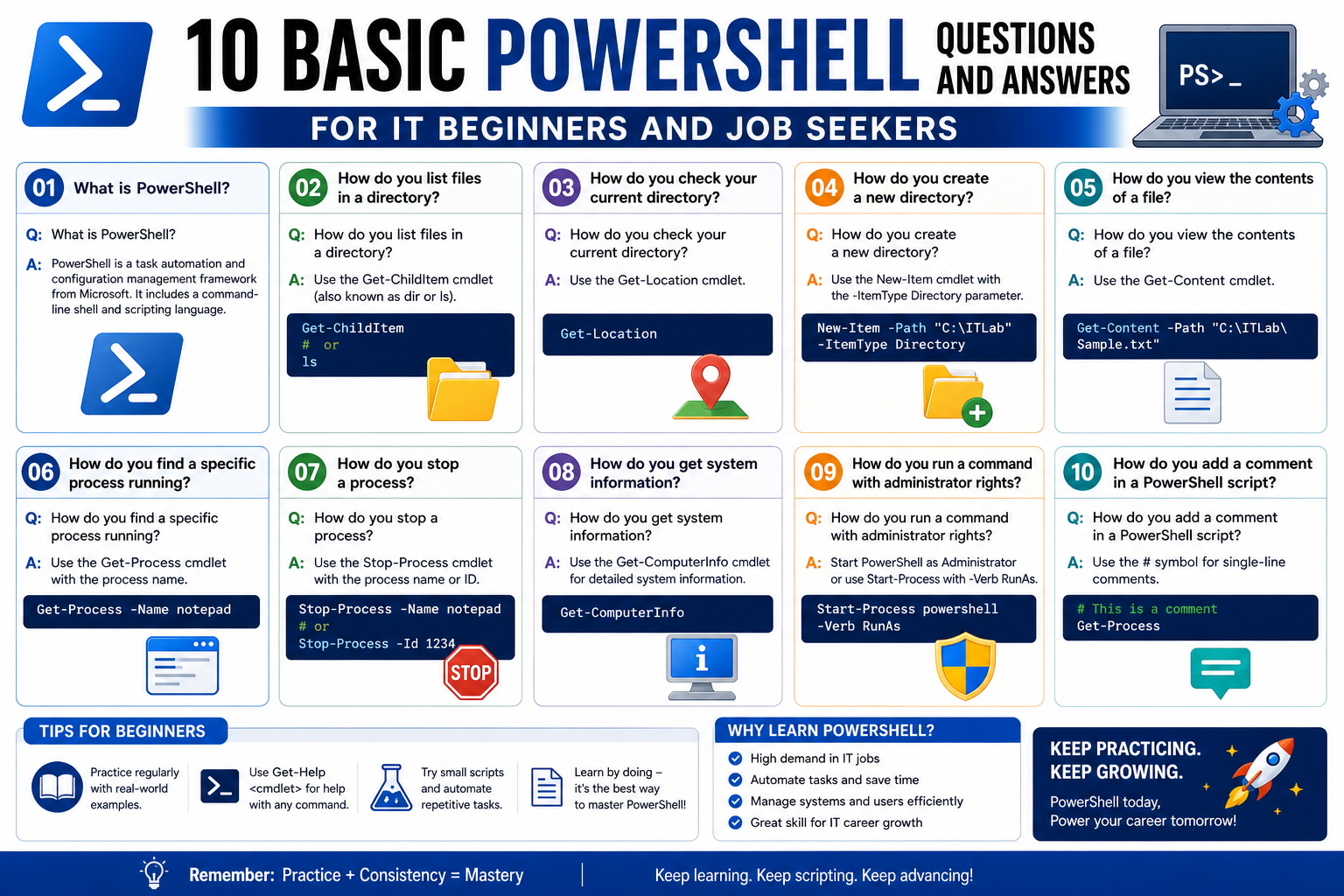
PowerShell often feels like a turning point for anyone who has spent years working mostly with graphical interfaces in Windows. Instead of clicking through menus, windows, and settings panels, you begin interacting directly with the system through structured commands. At first, this shift can feel unusual, even slightly intimidating, but it quickly becomes clear that it is also incredibly powerful.
Unlike traditional command-line tools, PowerShell is designed not just as a command interpreter but as a full scripting environment. It understands objects rather than just plain text output, which means it can pass structured data between commands in a way that feels more logical and flexible. This is one of the reasons it has become such an important tool in modern system administration.
For beginners, the early stages of learning PowerShell are less about memorizing complex commands and more about understanding how scripts are created, saved, and executed. Once these basics are clear, everything else starts to fall into place more naturally.
Writing Your First PowerShell Script and Understanding the Environment
The first step in learning PowerShell is simply creating a script. While there are many advanced tools available for scripting, beginners often start with something very simple and accessible. Even a basic text editor can be used to write PowerShell commands. However, Windows also provides a more specialized environment designed specifically for scripting.
This environment is known as the PowerShell Integrated Scripting Environment. It provides a dedicated space where you can write scripts, test them, debug them, and run them without switching between different applications. This makes it much easier for beginners to experiment and learn without worrying about complicated setup processes.
When you first open this scripting environment, you are presented with a layout that usually includes a script editing area, a command input area, and an output display. This structure allows you to see everything happening in one place, which is especially helpful when you are learning how commands behave.
A common starting point for any programming or scripting language is a simple message output. In PowerShell, this is often done using a command that displays text on the screen. Beginners typically start by instructing the system to display a simple phrase such as a greeting. This helps confirm that the script is working correctly and that the environment is properly set up.
Once you have written your first script, the next step is saving it correctly. PowerShell scripts use a specific file extension that identifies them as executable scripts rather than plain text files. This distinction is important because the system needs to recognize that the file contains instructions rather than just written content. Without the correct format, the script will not run as expected.
Choosing the right location to save your script is also part of the learning process. Many beginners start by saving files in easily accessible folders, often within their user directory. This makes it easier to locate scripts later when they are ready to run or modify them.
At this stage, the focus is not on complexity but on familiarity. The goal is to become comfortable with the idea that a script is simply a collection of instructions that the system can execute in sequence.
Running PowerShell Scripts and Understanding Execution Behavior
Once a script has been written and saved, the next logical step is execution. Running a PowerShell script is where theory turns into action, and it is often the moment when beginners start to appreciate how powerful scripting can be.
If you are working within the scripting environment, running a script is usually as simple as pressing a run or execute option. The script is processed line by line, and the output appears in the console window. This immediate feedback helps you understand exactly what each part of your script is doing.
Outside of the scripting environment, scripts can also be executed directly from the operating system interface. This is typically done by selecting the script file and choosing an option that runs it using PowerShell. When this happens, a PowerShell window opens, executes the script, and then typically closes once the script is finished.
This automatic closing behavior can sometimes be confusing for beginners because it prevents them from seeing the output after execution. To address this, scripts can be designed in a way that pauses at the end, giving the user time to review the results before the window closes. This is often achieved by adding a prompt that waits for user input before terminating.
Understanding script execution also involves understanding that PowerShell processes commands sequentially. Each line is executed in order, and the outcome of one command can influence the next. This is a fundamental concept in scripting and becomes increasingly important as scripts grow more complex.
Another important aspect of execution is recognizing that PowerShell treats scripts as instructions that can interact deeply with the system. This means that scripts are not just passive text files but active tools that can modify settings, retrieve system information, and perform administrative tasks. Because of this level of access, understanding execution behavior is essential for safe and effective scripting.
Navigating Directories and Opening PowerShell in the Right Context
One of the early challenges beginners face is navigating file locations while working with scripts. By default, PowerShell often opens in a standard user directory. While this is convenient, it is not always where your scripts are stored.
Manually navigating to the correct folder using commands can feel repetitive, especially when you are just trying to test or run a script. Fortunately, there are easier ways to open PowerShell in the exact location you need.
One of the simplest methods is using the file explorer interface. By opening a folder and launching PowerShell directly from that location, the command-line environment automatically starts in the correct directory. This eliminates the need for manual navigation and allows you to immediately begin working with files in that folder.
This approach is particularly useful when working with multiple scripts stored in different locations. Instead of remembering and typing long directory paths, you can simply open the folder and start working directly from there.
Understanding how directory context works is important because many PowerShell commands operate based on the current working location. If you are not in the correct directory, scripts may not run properly or may not be able to access required files. Developing the habit of checking your location before executing commands can prevent many common errors.
Accessing and Using System Environment Information
One of the strengths of PowerShell is its ability to interact with system-level information. This includes details about the computer itself, the user currently logged in, and various system settings that are stored as environment variables.
Environment variables are essentially system-defined values that store important information. These values can be read and used within scripts to make decisions or customize behavior based on the system context.
For example, PowerShell can retrieve the name of the computer it is running on. This is useful in environments where scripts are deployed across multiple machines, as it allows the script to adjust its behavior depending on which system it is executing on.
Similarly, PowerShell can access information about the current user or user domain. This is especially important in networked environments where different users may have different permissions or configurations.
What makes this powerful is that these values are not static. They change depending on the system and user context, allowing scripts to adapt dynamically. This flexibility is one of the reasons PowerShell is widely used in system administration and automation tasks.
Working with environment information also introduces beginners to the concept of system awareness. Instead of writing scripts that assume a fixed environment, you begin to write scripts that can detect and respond to different conditions. This is a major step toward more advanced scripting techniques.
Understanding Variables and the Foundation of Scripting Logic
As beginners progress, they start encountering variables, which are essential building blocks of any scripting language. A variable is simply a named storage location for information. In PowerShell, variables are used to store values such as text, numbers, or system data.
What makes PowerShell variables particularly interesting is that they are not limited to simple data types. Because PowerShell works with objects, variables can store complex structures of information. This allows scripts to handle more sophisticated tasks without requiring complicated syntax.
Variables are often used to store system information, user input, or results from commands. Once stored, this information can be reused throughout the script, making it more efficient and organized.
Understanding how variables work is essential because they form the foundation for decision-making in scripts. Once you can store and manipulate data, you can begin to build logic that responds to different conditions.
Working with Command Behavior and Naming Patterns
Another important concept for beginners is understanding how PowerShell commands are structured. Unlike traditional command-line tools that often use short or cryptic commands, PowerShell uses a more descriptive naming system.
Commands are typically built using a verb-noun structure, which makes them easier to understand. For example, instead of using abbreviated instructions, PowerShell commands clearly describe what action is being performed and on what object.
While this naming system improves clarity, it can sometimes feel lengthy for users coming from other environments. To make this more manageable, PowerShell allows the creation of shortcuts for frequently used commands. These shortcuts are known as aliases.
Aliases allow users to create simpler names for longer commands, making scripting faster and more convenient. However, they should be used carefully because they can reduce readability if overused or poorly documented.
Understanding command structure and naming conventions helps beginners read and interpret scripts more easily. Instead of memorizing commands blindly, you begin to understand the logic behind how they are designed.
Early Challenges in Learning PowerShell and Why They Matter
As with any new system, beginners often face a few common challenges when learning PowerShell. One of the most frequent difficulties is adjusting to the syntax differences compared to other programming or scripting languages.
For example, PowerShell uses different operators for comparison and assignment, which can initially feel unfamiliar. Instead of using symbols that are common in other languages, PowerShell relies on descriptive operators that make the intention of the command clearer.
Another challenge is understanding how spacing and structure affect command behavior. Unlike some languages that rely heavily on punctuation, PowerShell often uses spacing to separate parameters. This can feel unusual at first but becomes intuitive with practice.
These early challenges are not obstacles but rather part of the learning process. They encourage users to think differently about how commands are structured and executed. Over time, this leads to a deeper understanding of how the system works.
Building Confidence Through Repetition and Exploration
The most important aspect of learning PowerShell is consistent practice. As beginners continue writing scripts, running commands, and exploring system information, the environment gradually becomes more familiar.
Each small task contributes to a larger understanding of how scripting works. Over time, what once seemed complex begins to feel natural. This progression is what transforms a beginner into a confident user of PowerShell.
At this stage, the focus is not on mastering everything at once but on building a strong foundation. Writing simple scripts, understanding execution behavior, navigating directories, and working with system information all contribute to this foundation.
As familiarity grows, users naturally begin to experiment more, combining different concepts and exploring more advanced possibilities.
Understanding the Pipeline Concept and How PowerShell Moves Data Between Commands
One of the most powerful ideas in PowerShell is the concept of the pipeline. This is the mechanism that allows information to flow from one command to another in a structured and intelligent way. Instead of treating output as simple text, PowerShell passes objects between commands, which makes processing data far more flexible and precise.
In traditional command-line environments, output is often just a stream of text that must be manually parsed if you want to extract meaningful information. PowerShell changes this approach entirely by allowing each command to produce structured data that can be consumed directly by the next command in the sequence.
This means that when one command runs, it does not just produce visible output. It produces objects that contain properties and values. These objects can then be filtered, modified, or analyzed by subsequent commands without needing to reinterpret raw text.
The pipeline allows users to build chains of operations where each step refines or transforms the data further. This creates a natural flow of logic that mirrors how humans think about processing information. Instead of performing one large complex operation, tasks are broken into smaller, manageable steps.
For beginners, understanding the pipeline is often a turning point. It shifts the mindset from thinking about individual commands to thinking about data flow. Once this concept is clear, many previously confusing behaviors begin to make sense.
Working with Objects Instead of Plain Text Output
A key difference between PowerShell and many other command-line tools is its object-based design. In most traditional environments, commands return text that must be interpreted visually or manually processed. In PowerShell, commands return structured objects that contain multiple properties.
Each object represents a real system component or piece of data. For example, instead of simply displaying the name of a file, PowerShell treats the file as an object that contains information such as its name, size, creation date, and permissions.
This object-oriented approach allows scripts to access specific pieces of information directly. Instead of searching through text, you can target exact properties within an object. This makes data handling more accurate and efficient.
Understanding objects also helps explain why PowerShell commands behave differently from those in other environments. What appears on the screen is only a visual representation of the underlying data. The actual object contains far more information than what is immediately displayed.
This concept is essential for building more advanced scripts because it allows users to work with data in a structured way. Instead of relying on visual output, scripts can interact directly with the underlying information.
Filtering and Refining Information in PowerShell
As users begin working with larger amounts of data, the ability to filter information becomes increasingly important. PowerShell provides powerful filtering capabilities that allow users to narrow down results based on specific conditions.
Filtering is the process of selecting only the data that meets certain criteria. Instead of processing everything returned by a command, filters allow you to focus only on relevant information. This makes scripts more efficient and easier to interpret.
For example, when working with system processes or services, there may be hundreds of entries. Filtering allows you to isolate only those that match a particular name, status, or condition.
What makes filtering in PowerShell particularly powerful is that it operates on objects rather than text. This means filters can target specific properties directly, rather than relying on pattern matching or manual text parsing.
As beginners become more comfortable with filtering, they begin to see how it transforms large and complex outputs into manageable and meaningful results. This is especially important in administrative environments where systems generate large amounts of data.
Sorting Data and Organizing Output Effectively
Closely related to filtering is the concept of sorting. While filtering reduces the amount of data being processed, sorting helps organize that data in a meaningful order.
Sorting allows users to arrange information based on specific properties. For example, data can be sorted alphabetically, numerically, or chronologically depending on the type of information being handled.
This becomes particularly useful when dealing with system logs, file lists, or performance data. Instead of scanning through unordered results, sorting makes it easier to identify patterns or anomalies.
PowerShell’s sorting capabilities are closely tied to its object-based design. Because each item contains structured properties, sorting can be applied directly to those properties without additional processing.
For beginners, sorting introduces the idea that data presentation is just as important as data collection. The way information is organized can significantly impact how easily it is understood.
Understanding Parameters and Command Flexibility
Another important concept in PowerShell is the use of parameters. Parameters allow commands to be customized based on specific requirements. Instead of having separate commands for every possible variation, PowerShell uses parameters to adjust behavior dynamically.
This makes commands highly flexible. A single command can perform multiple related tasks depending on how it is used. Parameters act as modifiers that refine the command’s behavior.
Understanding parameters is essential because they determine how commands interact with data. They control what information is retrieved, how it is processed, and what format it is displayed in.
For beginners, parameters may initially seem overwhelming due to the number of available options. However, over time, it becomes clear that most tasks only require a small subset of commonly used parameters.
Once this understanding develops, users begin to see PowerShell not as a collection of separate commands but as a flexible system where behavior can be adjusted through simple modifications.
Error Handling and Understanding Script Behavior When Things Go Wrong
No matter how carefully a script is written, errors are inevitable. PowerShell provides several mechanisms for handling errors and controlling what happens when something goes wrong.
Errors can occur for many reasons, such as missing files, incorrect permissions, or unexpected system states. When an error happens, PowerShell must decide whether to continue executing the script or stop immediately.
This behavior can be controlled through built-in settings that determine how errors are treated. In some cases, it may be appropriate for a script to continue even if a non-critical error occurs. In other cases, it may be safer to stop execution entirely.
Understanding error handling is important because it directly affects script reliability. A well-designed script should anticipate potential issues and respond to them in a controlled manner.
For beginners, encountering errors is part of the learning process. Each error provides insight into how PowerShell interprets commands and what conditions affect execution.
Debugging Scripts and Observing Execution Flow
As scripts become more complex, understanding how they behave during execution becomes increasingly important. Debugging is the process of analyzing a script to identify and resolve issues.
PowerShell provides tools and behaviors that help users observe what is happening as a script runs. This includes viewing output at different stages and examining how data changes as it moves through the script.
Debugging is not just about fixing errors. It is also about understanding logic flow. By observing how each part of a script executes, users can identify inefficiencies or unexpected behavior.
For beginners, debugging teaches patience and attention to detail. It encourages a deeper understanding of how each command contributes to the overall outcome.
Functions and Reusable Script Components
As users gain confidence, they begin to organize their scripts into reusable components. Functions are one of the key ways to achieve this.
A function is a self-contained block of logic that performs a specific task. Once created, it can be reused multiple times within a script or even across different scripts.
Functions help reduce repetition and improve organization. Instead of writing the same logic repeatedly, it can be defined once and called whenever needed.
This concept is important because it introduces modular thinking. Scripts are no longer viewed as single continuous blocks of instructions but as collections of smaller, reusable parts.
Functions also make scripts easier to maintain. When changes are needed, they can be made in one place rather than across multiple sections of a script.
Introduction to PowerShell Modules and Extending Functionality
PowerShell can be extended through modules, which are packages that contain additional commands, functions, and tools. Modules allow users to add new capabilities without modifying the core system.
Each module typically focuses on a specific area of functionality. Some modules provide tools for system administration, while others focus on networking, security, or cloud environments.
Modules help organize functionality into logical groups. Instead of having all commands available at once, users can load only the modules they need for a specific task.
This modular approach improves efficiency and keeps the environment clean and manageable. It also allows PowerShell to scale across different use cases, from simple local tasks to complex enterprise environments.
For beginners, understanding modules introduces the idea that PowerShell is not a fixed tool but an expandable ecosystem.
Script Execution Policies and Security Awareness
Because PowerShell scripts can interact deeply with the operating system, security is an important consideration. Execution policies determine what types of scripts are allowed to run on a system.
These policies are designed to protect systems from untrusted or potentially harmful scripts. Depending on the configuration, a system may restrict script execution or require certain conditions to be met before allowing a script to run.
Understanding execution policies is important for anyone working with scripts regularly. It ensures that scripts are executed in a controlled and secure environment.
Rather than being a limitation, these policies are part of a broader security framework that helps maintain system integrity. They encourage users to be intentional about what scripts are executed and where they come from.
Working with Remote Systems and Managing Multiple Machines
One of the most powerful capabilities of PowerShell is its ability to manage remote systems. This allows administrators to execute commands on multiple machines without physically accessing each one.
Remote management is essential in modern IT environments where systems are distributed across networks or even different geographic locations. PowerShell enables centralized control, making it easier to maintain consistency across systems.
When working with remote systems, commands are executed on target machines and results are returned to the local system. This creates a seamless experience where multiple systems can be managed from a single interface.
For beginners, remote execution introduces the concept of scale. Instead of thinking about a single machine, users begin to think in terms of entire networks.
This shift is important because it reflects how modern infrastructure is managed in real-world environments.
Data Transformation and Formatting Output for Clarity
As scripts produce more complex data, presenting that information clearly becomes increasingly important. PowerShell allows users to format output in different ways to improve readability.
Data can be structured into lists, tables, or other formats depending on how it needs to be interpreted. This flexibility ensures that information is not only accurate but also easy to understand.
Formatting is particularly useful when presenting results to others or when reviewing large sets of data. Clear presentation helps reduce confusion and highlights important details.
Understanding how to transform and present data effectively is a key part of developing advanced scripting skills.
Building Logical Thinking Through Script Design
As users progress in PowerShell, they begin to develop a more structured approach to problem-solving. Script design becomes less about individual commands and more about overall logic.
Each script begins to represent a workflow. Inputs are processed, decisions are made, and outputs are generated based on defined conditions.
This logical structure mirrors real-world problem-solving processes. Instead of thinking in isolated steps, users begin to think in terms of systems and outcomes.
This shift in thinking is one of the most important developments in learning PowerShell. It transforms scripting from a technical skill into a method of structured reasoning that can be applied across many different scenarios.
Automating System Administration with PowerShell Workflows
As experience with PowerShell grows, the focus naturally shifts from writing individual commands to building complete automation workflows. This is where PowerShell becomes more than just a command-line tool and starts functioning as a full automation engine for system administration.
Automation in PowerShell is about reducing repetitive manual tasks and replacing them with repeatable, reliable scripts. Instead of performing the same set of actions repeatedly across multiple systems, those actions are encoded into scripts that execute consistently every time.
This shift is especially important in environments where systems must be maintained at scale. Whether managing a small office network or a large distributed infrastructure, automation reduces human error and ensures consistency across operations.
A workflow in PowerShell typically consists of a sequence of tasks that follow a logical order. Data is gathered, processed, evaluated, and acted upon. Each stage builds on the previous one, creating a structured pipeline of operations that can run unattended.
What makes PowerShell particularly effective for automation is its ability to interact directly with system components. Instead of relying on external tools or manual intervention, scripts can control services, modify configurations, and retrieve system information in real time.
For beginners moving into automation, the key mindset shift is learning to think in terms of outcomes rather than individual commands. Instead of asking “what command do I run next,” the question becomes “what is the overall task I want to accomplish.”
Task Scheduling and Repeated Execution in PowerShell
Automation often requires scripts to run at specific times or intervals. PowerShell supports this through integration with system-level scheduling mechanisms that allow scripts to execute automatically without user input.
Scheduled execution is essential for routine tasks such as system maintenance, log cleanup, performance monitoring, and data backups. Instead of manually triggering these processes, they can be configured to run automatically based on time or system events.
This introduces a new layer of reliability into system administration. Tasks are no longer dependent on human memory or availability. Once configured, they execute consistently according to predefined schedules.
Understanding scheduled execution also reinforces the importance of script stability. Since these scripts run without supervision, they must be designed to handle errors gracefully and complete their tasks without interruption.
For beginners, this concept emphasizes the importance of testing scripts thoroughly before automating them. A small mistake in a manually run script may be inconvenient, but the same mistake in an automated task can have widespread consequences.
Working with System Services and Background Processes
One of the most common administrative tasks in Windows environments is managing system services. These services run in the background and are responsible for core system functionality as well as installed applications.
PowerShell provides direct access to service management, allowing users to start, stop, and monitor services without relying on graphical tools. This makes it easier to manage systems remotely or across multiple machines.
Services can be queried to determine their current status, whether they are running, stopped, or paused. This information can be used within scripts to make decisions or trigger actions.
Background processes are another important area of system management. These processes operate independently of user interfaces and often consume system resources. PowerShell allows administrators to inspect and control these processes to ensure optimal system performance.
By combining service management with process control, scripts can maintain system stability and respond dynamically to changes in system behavior.
File System Management and Large-Scale Data Handling
PowerShell is particularly effective when working with file systems. Instead of manually navigating folders and files, scripts can automate the process of locating, copying, moving, and modifying data across directories.
This capability is essential in environments where large volumes of data must be managed efficiently. For example, log files, backups, and configuration files often need to be processed in bulk.
File system operations in PowerShell are object-based, meaning each file is treated as an entity with properties such as size, path, creation time, and modification date. This allows scripts to filter and manipulate files based on specific criteria.
For example, a script can identify all files older than a certain date and remove them automatically. Similarly, it can locate files of a specific type and move them to designated locations.
This level of control makes PowerShell a powerful tool for data organization and system maintenance. Instead of manually handling files, administrators can define rules that automatically manage data according to system requirements.
Logging, Monitoring, and System Visibility
As systems become more complex, visibility into their behavior becomes increasingly important. PowerShell provides mechanisms for logging and monitoring system activity, allowing administrators to track what is happening over time.
Logging involves recording events, actions, and system states so they can be reviewed later. This is essential for troubleshooting issues and understanding system behavior.
Monitoring takes this a step further by continuously observing system conditions and reacting to changes. Scripts can be designed to detect specific events and trigger alerts or corrective actions.
This combination of logging and monitoring creates a feedback loop that improves system reliability. Instead of reacting to problems after they occur, administrators can detect and respond to issues as they develop.
For beginners, this introduces the idea that scripts are not just tools for execution but also tools for observation. They provide insight into how systems behave under different conditions.
Error Recovery Strategies and Script Resilience
In real-world environments, failures are inevitable. Systems may become unavailable, network connections may fail, or resources may be temporarily inaccessible. PowerShell scripts must be designed to handle these situations gracefully.
Error recovery involves anticipating potential points of failure and defining how scripts should respond. Instead of stopping abruptly, scripts can attempt retries, skip problematic steps, or log errors for later review.
This approach improves resilience and ensures that automation continues even when unexpected conditions occur. A resilient script is one that can adapt to changing environments without requiring constant supervision.
For beginners, learning error recovery is an important step toward writing professional-quality scripts. It shifts the focus from simply making scripts work to ensuring they continue working under different conditions.
Data Import and Export in PowerShell Environments
Modern system administration often involves working with external data sources. PowerShell provides built-in capabilities for importing and exporting data in various formats.
This allows scripts to interact with structured data such as configuration files, system reports, and external datasets. Once imported, this data can be processed, analyzed, or modified within PowerShell.
Exporting data is equally important. Scripts can generate reports, logs, or structured outputs that can be used by other systems or reviewed by administrators.
This capability makes PowerShell a bridge between different systems and tools. It allows data to flow between environments in a controlled and structured way.
For beginners, understanding data import and export introduces the concept of interoperability. Scripts are not isolated tools but part of a larger ecosystem of systems and applications.
Working with Security Contexts and Permissions
Security is a fundamental aspect of system administration, and PowerShell plays a significant role in managing permissions and access control.
Different users and processes operate under different security contexts. These contexts determine what actions are allowed and what resources can be accessed.
PowerShell scripts must respect these security boundaries. In some cases, elevated permissions are required to perform certain tasks. In others, scripts must operate within restricted environments.
Understanding security contexts helps prevent unauthorized actions and ensures that scripts are executed safely. It also reinforces the importance of least-privilege principles, where scripts only have the access they need to perform their tasks.
For beginners, this introduces the idea that scripting is not just about functionality but also about responsibility. Scripts must be designed with security in mind from the beginning.
Interacting with Network Resources and Remote Data Sources
Beyond local system management, PowerShell is widely used for interacting with network resources. This includes file shares, remote servers, and distributed services.
Network operations allow scripts to retrieve and manipulate data stored on remote systems. This is essential in environments where resources are distributed across multiple locations.
PowerShell provides mechanisms for establishing connections, sending requests, and receiving responses from remote systems. These interactions can be integrated into scripts to create unified management solutions.
Working with network resources introduces additional considerations such as latency, connectivity issues, and authentication requirements. Scripts must be designed to handle these factors effectively.
For beginners, this expands the scope of PowerShell from a local tool to a network-aware automation platform.
Performance Optimization and Efficient Script Design
As scripts grow in complexity, performance becomes an important consideration. Inefficient scripts can consume unnecessary system resources and take longer to execute.
PowerShell allows users to optimize scripts by reducing redundant operations, minimizing data processing overhead, and improving command efficiency.
One key aspect of performance optimization is reducing unnecessary data retrieval. Instead of processing large datasets multiple times, scripts can be designed to retrieve only the required information once.
Another important factor is avoiding unnecessary loops or repeated operations. Efficient script design focuses on minimizing repetition and maximizing reuse of data.
For beginners, performance optimization introduces the idea that how a script is written is just as important as what it does.
Advanced Filtering Logic and Conditional Processing
As users become more experienced, they begin to combine filtering with conditional logic. This allows scripts to make decisions based on specific conditions within the data.
Conditional processing enables scripts to behave dynamically. Instead of executing the same actions regardless of context, scripts can adjust their behavior based on system state or input data.
This introduces a level of intelligence into scripting. Scripts are no longer static sequences of commands but adaptive systems that respond to changing conditions.
Understanding conditional logic is essential for building complex automation solutions. It allows scripts to handle multiple scenarios without requiring separate versions for each case.
Building Scalable Script Architectures
As scripting skills advance, the focus shifts from individual scripts to larger systems of automation. Scalable script architecture involves organizing scripts in a way that allows them to grow and adapt over time.
This includes separating logic into reusable components, organizing scripts into modules, and designing workflows that can be extended without major restructuring.
Scalability is important because system requirements often change. A well-designed script should be able to accommodate new features or changes in environment without needing complete redesign.
For beginners, this concept introduces long-term thinking in script design. Instead of focusing only on immediate tasks, scripts are designed with future expansion in mind.
Transitioning from Beginner to Advanced Scripting Mindset
At this stage of learning PowerShell, the most important development is not technical skill alone but mindset transformation. Users begin to think in terms of systems, automation, and structured logic.
Commands are no longer seen as isolated instructions but as building blocks within larger workflows. Scripts become tools for solving real-world problems at scale.
This transition marks the difference between basic familiarity and practical expertise. It is where PowerShell becomes a core part of system administration practice rather than just an optional tool.
As this mindset develops, users gain the ability to design, build, and maintain automation systems that are reliable, efficient, and adaptable to changing environments.
Conclusion
PowerShell has become far more than a simple command-line tool; it is now a complete automation and system management platform that reshapes how Windows environments are administered. What begins as a small step away from graphical interfaces quickly evolves into a more structured, efficient, and scalable way of working with systems. By learning its fundamentals, users gain access to a powerful framework that can control local machines, manage networks, and automate complex workflows with precision.
One of the most important takeaways from working with PowerShell is the shift in thinking it encourages. Instead of performing repetitive manual tasks through graphical interfaces, users begin to design solutions that run consistently and reliably. This shift not only improves productivity but also reduces the likelihood of human error, especially in environments where accuracy is critical.
PowerShell’s object-based approach, pipeline system, and flexible scripting structure make it uniquely suited for modern IT environments. These features allow data to be processed intelligently rather than as simple text output, enabling deeper control over system behavior. As users become more comfortable with these concepts, they naturally begin building more advanced scripts that handle filtering, automation, error handling, and system monitoring with ease.
Another key strength of PowerShell lies in its scalability. Whether managing a single workstation or thousands of servers, the same core principles apply. Scripts can be adapted, expanded, and reused across different environments, making it a long-term skill that grows with the demands of the job.
Ultimately, learning PowerShell is not just about mastering commands but about developing a mindset of automation and efficiency. It encourages users to think in terms of systems, workflows, and outcomes rather than isolated actions. This perspective is what transforms a beginner into a capable administrator who can confidently manage complex environments with clarity and control.