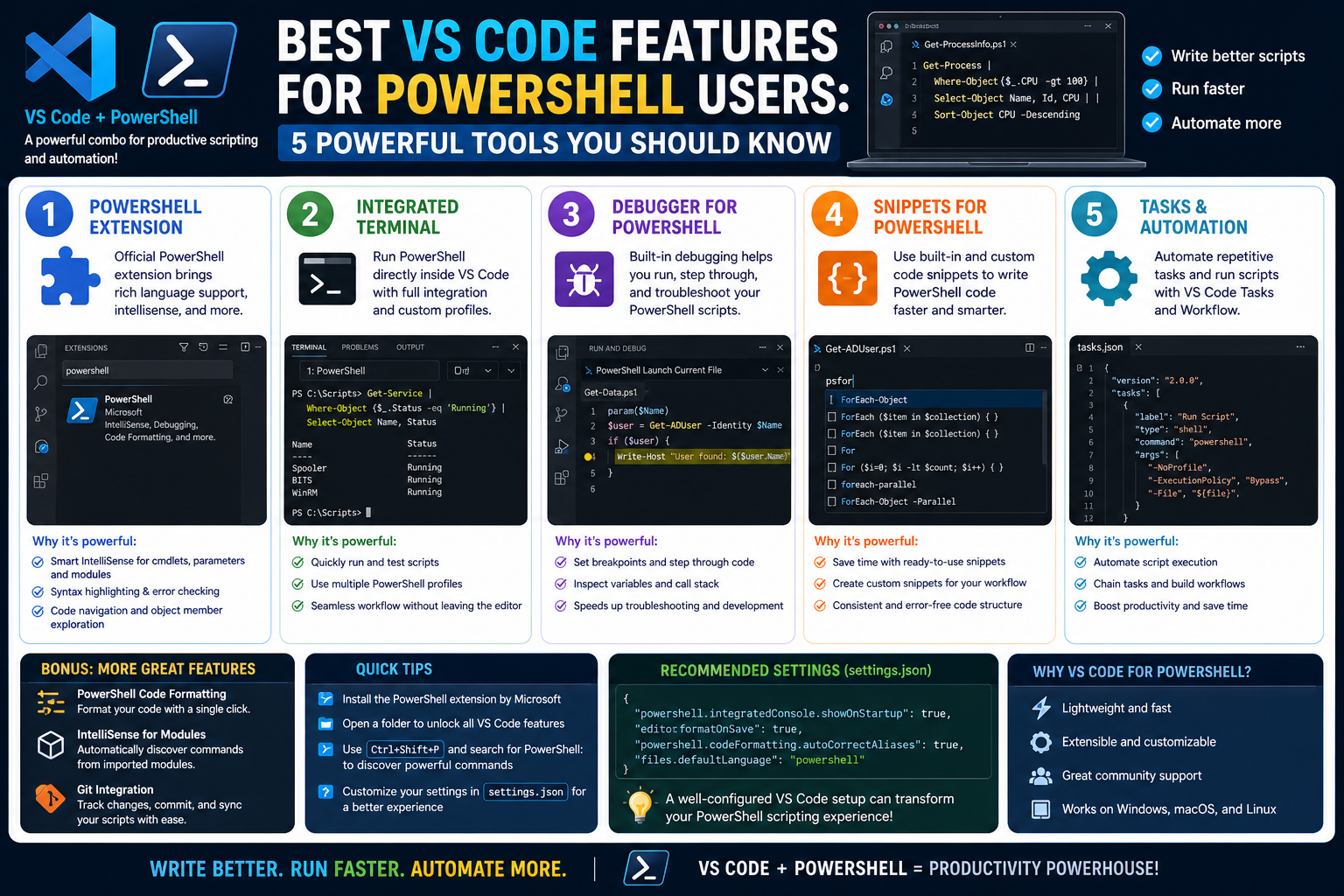
PowerShell has become one of the most important tools in modern system administration because it combines two powerful capabilities into a single environment. On one hand, it functions as an interactive command-line shell where administrators can run commands, inspect systems, and perform immediate tasks. On the other hand, it operates as a full scripting language capable of automating complex workflows, managing infrastructure, and orchestrating large-scale environments.
Unlike traditional command-line tools that are limited in scope, PowerShell is built on a structured framework that treats everything as an object rather than plain text. This makes it significantly more flexible when handling system data. Instead of parsing strings manually, administrators can work with structured outputs, making automation more reliable and easier to maintain.
Over time, PowerShell has moved beyond being a Windows-only tool. It is now available across multiple operating systems, which has expanded its role in modern IT environments. Administrators working in mixed environments often rely on it to bridge system management tasks across different platforms. This flexibility is one of the reasons it continues to gain popularity in both enterprise and cloud-based infrastructures.
Because PowerShell is so versatile, writing scripts in it requires a proper development environment. While it is possible to use basic text editors, doing so limits productivity and increases the likelihood of errors. This is where modern code editors become essential, especially those designed to support multiple languages, scripting tools, and intelligent development features.
Among these tools, Visual Studio Code has become a widely adopted option for PowerShell development. It provides a lightweight but powerful environment that adapts to different languages and workflows. Instead of being a traditional heavy integrated development environment, it focuses on modularity and speed while still offering advanced features through extensions and built-in capabilities.
To fully understand why Visual Studio Code is so effective for PowerShell, it is important to examine its core features in detail. Two of the most fundamental features that directly affect how PowerShell scripts are written and understood are language mode and syntax highlighting. These two components work together to shape how the editor interprets and presents code.
Why Visual Studio Code Is Effective for PowerShell Development
When working with PowerShell scripts, clarity and structure are essential. Scripts often grow in complexity as they begin to manage services, automate deployments, or interact with remote systems. Without proper tooling, it becomes difficult to maintain readability and ensure accuracy.
Visual Studio Code is designed to support this kind of complexity without overwhelming the user. It provides a clean interface that focuses on the code itself while still offering powerful features in the background. One of its strengths lies in its ability to adapt dynamically depending on the type of file being edited.
PowerShell benefits greatly from this adaptability because scripts often include a mix of commands, variables, expressions, and system operations. Each of these elements needs to be displayed clearly so that the logic of the script remains understandable. Visual Studio Code achieves this by detecting the type of file being used and applying appropriate configurations automatically.
This adaptability is not limited to PowerShell alone. The editor supports a wide range of programming languages and scripting environments. However, PowerShell integration is particularly strong because of dedicated support that enhances how scripts are written, viewed, and interpreted.
To understand this more deeply, it is important to explore the concept of language mode, which is one of the foundational features that determines how the editor behaves.
Language Mode and Its Role in PowerShell Editing
Language mode is a core feature in Visual Studio Code that determines how the editor interprets the content of an open file. Every file opened in the editor is associated with a specific language mode, which informs the system about what kind of syntax rules, formatting behavior, and tooling support should be applied.
When working with PowerShell, the language mode ensures that the editor understands the structure and rules of PowerShell scripting. This includes recognizing commands, variables, expressions, and script logic in a way that is consistent with how PowerShell itself operates.
One of the most important aspects of language mode is that it is usually detected automatically. Visual Studio Code examines the file type and extension to determine the appropriate language. For PowerShell scripts, this typically means recognizing script files and applying the correct configuration without requiring manual setup.
This automatic detection reduces friction for users because it eliminates the need to configure the environment every time a script is opened. Instead, the editor immediately adapts to the correct context, allowing the user to focus on writing and reviewing code rather than adjusting settings.
Language mode also plays a critical role in enabling other features within the editor. Many advanced capabilities depend on knowing the correct language context. Without this information, the editor would not be able to provide accurate assistance or visual enhancements.
For example, features such as structured formatting, error detection, and intelligent suggestions rely on language mode to function properly. Even external tools that integrate with the editor often use this setting to determine how to process code.
In the context of PowerShell, language mode ensures that scripts are treated according to PowerShell syntax rules. This means that commands are recognized correctly, variables are interpreted properly, and script structures are understood in a meaningful way.
Another important aspect is visibility. Language mode is displayed within the interface so that users can quickly confirm which language is currently active. This is particularly useful when working with multiple file types in a single project, as it helps prevent confusion and ensures that the correct environment is being used.
While language mode may seem like a simple feature, it acts as the foundation for many other capabilities within the editor. Without it, features like syntax highlighting and intelligent assistance would not function effectively.
How Language Mode Enhances PowerShell Workflow Efficiency
The impact of language mode becomes more noticeable when working with larger PowerShell scripts or complex automation tasks. As scripts grow in size, maintaining structure and consistency becomes increasingly important. Language mode helps manage this complexity by ensuring that the editor always understands the context of the code being written.
One of the key benefits is consistency in how code is interpreted. PowerShell scripts often include a combination of commands, variables, loops, and conditional logic. Each of these components follows specific rules, and language mode ensures that those rules are applied correctly within the editor.
This consistency reduces errors that might otherwise occur when working in a generic text environment. Without proper language awareness, it is easy to misinterpret syntax or overlook structural issues in a script. Language mode minimizes this risk by providing a structured understanding of the code.
Another important benefit is smoother navigation within scripts. When the editor understands the language context, it can organize and present code in a more readable format. This makes it easier to move through large scripts and locate specific sections without confusion.
Language mode also enhances collaboration in environments where multiple people work on the same scripts. When everyone uses an editor that correctly interprets PowerShell syntax, it becomes easier to maintain consistency across different systems and contributors.
In addition, language mode supports integration with other tools that extend the functionality of the editor. These tools often rely on language context to provide specialized behavior. For example, formatting tools may adjust indentation rules based on PowerShell syntax, ensuring that scripts remain clean and readable.
As PowerShell continues to evolve, language mode remains a critical component in ensuring that scripts are handled correctly within development environments. It acts as a bridge between raw script content and intelligent editing features that improve usability and accuracy.
Syntax Highlighting as a Visual Structure for PowerShell Scripts
Syntax highlighting is one of the most immediately noticeable features in Visual Studio Code. It transforms plain text into a visually structured format by applying different colors and styles to various elements of a script. In PowerShell development, this feature plays a crucial role in improving readability and reducing cognitive load.
At its core, syntax highlighting is designed to help users quickly distinguish between different parts of a script. Commands, variables, strings, operators, and keywords are all displayed in distinct visual formats. This allows the human eye to process information more efficiently and understand script structure at a glance.
In PowerShell scripts, where commands often interact with system components and variables represent dynamic values, clarity is essential. Syntax highlighting ensures that these elements are not visually blended together, which helps prevent mistakes and improves overall comprehension.
Another important aspect of syntax highlighting is that it reflects the rules of the language mode. Since language mode determines which language is active, syntax highlighting adjusts automatically to match that context. This means that PowerShell scripts are displayed differently from scripts written in other languages, even when opened in the same editor.
This dynamic adjustment is especially useful in environments where multiple scripting languages are used. Administrators and developers often switch between different tools, and syntax highlighting ensures that each language is presented in a way that is consistent with its structure.
Beyond readability, syntax highlighting also supports error detection in an indirect way. When code elements are visually separated, it becomes easier to identify anomalies or inconsistencies. For example, misplaced symbols or incorrectly structured commands are often easier to spot when they do not follow the expected visual pattern.
In PowerShell development, this visual clarity becomes even more important because scripts can include nested logic, multiple parameters, and complex workflows. Without syntax highlighting, these scripts would appear as uniform blocks of text, making them significantly harder to interpret.
The Relationship Between Syntax Highlighting and Code Understanding
Syntax highlighting does more than improve visual appearance. It fundamentally changes how developers interact with code by providing a structured visual map of the script. This map helps break down complex logic into understandable components.
When reading PowerShell scripts, the ability to quickly identify command structures and variable usage is essential. Syntax highlighting supports this by visually separating functional elements from descriptive or dynamic elements within the script.
For example, commands typically stand out from variables, while strings are visually distinct from operational logic. This separation allows users to scan scripts more efficiently and understand their purpose without needing to read every line in detail.
This becomes particularly useful during troubleshooting or review processes. When examining a script for issues, visual cues provided by syntax highlighting can guide attention toward areas that may require closer inspection.
It also improves learning for individuals who are new to PowerShell. By visually distinguishing different components of a script, syntax highlighting helps learners understand how the language is structured. Over time, this visual reinforcement supports deeper understanding of scripting concepts.
In professional environments, where scripts may be shared or maintained by multiple individuals, syntax highlighting contributes to consistency. Regardless of who originally wrote the script, the visual structure remains consistent across systems that use compatible editors.
This consistency is important for long-term maintainability. Scripts often evolve over time, and having a consistent visual structure helps ensure that future modifications can be made with confidence.
As PowerShell continues to be used in increasingly complex environments, tools that enhance clarity and readability become more valuable. Syntax highlighting remains one of the simplest yet most effective ways to achieve this clarity within Visual Studio Code.
Understanding IntelliSense in PowerShell Development
IntelliSense is one of the most influential productivity features available in Visual Studio Code when working with PowerShell. It acts as an intelligent assistance system that predicts what the user is trying to write and offers relevant suggestions in real time. Instead of requiring developers or system administrators to remember every command, parameter, or syntax rule, IntelliSense provides guided support directly within the editing environment.
In PowerShell development, where commands can be long and highly specific, IntelliSense plays a particularly important role. Scripts often involve complex interactions with system components, services, files, and remote systems. Remembering every possible command structure is not practical, especially when working across multiple modules or administrative domains.
IntelliSense reduces this cognitive load by continuously analyzing the context of what is being typed. As a user begins entering a command, the system evaluates the current language environment and presents a list of possible completions. These suggestions are not random; they are based on recognized PowerShell commands, installed modules, and the current scripting context.
This contextual awareness makes IntelliSense more than just an autocomplete tool. It becomes a dynamic assistant that understands the structure of PowerShell itself. It can identify command prefixes, expected parameters, and even potential argument types, allowing users to construct scripts more efficiently and with fewer errors.
How IntelliSense Improves Command Discovery and Accuracy
One of the most practical benefits of IntelliSense is its ability to improve command discovery. PowerShell contains a large and continuously expanding set of commands, especially when modules are added for system administration, networking, cloud management, or security operations. Without assistance, locating the correct command for a specific task can be time-consuming.
IntelliSense simplifies this process by presenting relevant options as soon as a partial command is entered. Instead of searching externally or relying on memory, users can browse suggestions directly within the editor. This significantly speeds up development and reduces the likelihood of using incorrect or outdated commands.
Accuracy is another major advantage. PowerShell commands often require precise syntax, including correct parameter names and expected value types. Even small mistakes can lead to script errors or unexpected behavior. IntelliSense helps prevent these issues by displaying valid parameter options alongside commands.
As the user continues typing, suggestions become more refined. This narrowing process ensures that only relevant commands remain visible, making it easier to select the correct option. It also reduces the chance of typographical errors, which are common in manually written scripts.
In larger environments, where multiple modules may be installed, IntelliSense becomes even more valuable. It can distinguish between similarly named commands from different modules and present them in a structured way. This helps avoid confusion and ensures that scripts are built using the correct functional components.
The Role of Code Suggestions in Large PowerShell Environments
In enterprise-level IT environments, PowerShell scripts are often used to manage large-scale infrastructure. These scripts may interact with servers, cloud services, user accounts, security policies, and automated workflows. As complexity increases, maintaining clarity and consistency becomes essential.
Code suggestions provided by IntelliSense help manage this complexity by offering structured guidance during script development. Instead of manually constructing long command sequences, users can rely on suggestions that reflect the correct syntax and available options.
This becomes especially useful when working with unfamiliar modules or newly introduced commands. Rather than consulting external documentation, users can explore available options directly within the editor. This integrated approach reduces interruptions and keeps the focus on script development.
Another important aspect is consistency. In environments where multiple administrators work on shared scripts, IntelliSense helps standardize command usage. Since suggestions are based on installed modules and recognized syntax, they naturally encourage consistent coding patterns across teams.
This consistency is important for long-term maintenance. Scripts that follow predictable structures are easier to update, debug, and extend. IntelliSense supports this by guiding users toward standardized usage patterns without enforcing rigid rules.
Debugging PowerShell Scripts in Visual Studio Code Using F5
Debugging is a critical part of PowerShell scripting, especially when scripts are used to manage production systems or automate important workflows. Even well-written scripts can encounter unexpected conditions, making it necessary to test and analyze behavior step by step.
Visual Studio Code provides a built-in debugging mechanism that integrates directly with PowerShell. One of the simplest and most effective ways to initiate this process is through the use of the F5 function key. When activated, the editor launches the script in a controlled debugging environment.
This environment allows the script to run while giving the user visibility into its execution process. Instead of simply executing the script and displaying output, the debugger provides structured feedback about how the script is being processed internally.
This includes tracking execution flow, monitoring variable values, and identifying points where issues may occur. By observing the script in this controlled environment, users can better understand how different parts of the script interact with each other.
The debugging process is particularly useful in PowerShell because scripts often involve conditional logic and external system interactions. These elements can behave differently depending on system state, permissions, or configuration. Debugging helps isolate these variables and identify the exact point where behavior diverges from expectations.
Another important aspect of F5-based debugging is its ability to simplify testing. Instead of manually executing individual commands or sections of a script, users can run the entire script within a monitored environment. This ensures that all components are evaluated in context, providing a more accurate representation of real-world behavior.
Understanding Script Execution Flow During Debugging
When a PowerShell script is executed in debugging mode, the system processes each line in sequence while maintaining awareness of the overall script structure. This sequential execution allows users to observe how data moves through the script and how different commands influence each other.
One of the key benefits of this approach is visibility. Instead of treating the script as a single block of execution, debugging breaks it down into individual steps. Each step can be examined independently, making it easier to understand complex logic.
This is especially useful when working with loops, conditional statements, or nested functions. These structures can sometimes behave differently depending on input values or system state. Debugging allows users to observe how these structures behave in real time.
Another advantage is error isolation. When a script fails, it is not always immediately clear where the issue originated. Debugging helps pinpoint the exact location of the problem by tracking execution flow up to the point of failure.
This reduces the time spent on troubleshooting and makes it easier to correct issues without modifying unrelated parts of the script. It also encourages a more structured approach to script development, where each component can be tested individually.
Running Selected Code Blocks with F8 for Targeted Testing
While full-script debugging is useful for understanding overall behavior, there are many situations where testing smaller sections of code is more efficient. Visual Studio Code provides a feature that allows users to execute selected portions of a script directly, offering a faster way to test individual components.
By highlighting a section of PowerShell code and triggering execution, users can run only that specific portion without running the entire script. This method is particularly useful when experimenting with new commands or verifying the behavior of a specific function.
This targeted execution approach helps reduce testing time significantly. Instead of waiting for full script execution, users can isolate small sections and immediately observe their output. This makes it easier to iterate and refine code in real time.
It also supports a more modular approach to script development. Instead of writing and testing large scripts all at once, users can build scripts incrementally, testing each component as it is developed. This reduces the likelihood of introducing errors into already working sections.
In PowerShell development, where scripts often interact with live systems, this kind of controlled testing is especially important. It allows users to validate behavior without executing unnecessary operations or affecting unrelated systems.
Benefits of Isolated Execution in Script Development
Isolated execution of code blocks provides a controlled environment for experimentation and validation. When working with PowerShell, this approach is particularly useful because scripts often perform actions that affect system state, such as modifying configurations, managing services, or interacting with external resources.
By executing only selected portions of code, users can observe behavior without triggering full script workflows. This reduces risk and allows for safer testing of new logic or modifications.
It also supports faster iteration cycles. Instead of repeatedly running entire scripts to test small changes, users can focus on specific sections and refine them independently. This improves efficiency and allows for more precise control over script behavior.
Another advantage is clarity. When only a small portion of code is executed, it becomes easier to understand its direct output and impact. This makes debugging more straightforward and reduces confusion caused by unrelated script components.
Over time, this approach encourages better script design. Developers naturally begin structuring scripts in modular ways, making them easier to test, maintain, and extend.
Using the Integrated Terminal for PowerShell Operations
The integrated terminal in Visual Studio Code provides a direct interface for interacting with PowerShell without leaving the development environment. This feature allows users to run commands, execute scripts, and monitor system responses within the same workspace where code is written.
This integration is particularly useful because it eliminates the need to switch between separate applications. Instead of writing code in one environment and executing it in another, everything happens in a unified interface.
The terminal behaves like a standard PowerShell environment, meaning it supports familiar commands and behaviors. However, because it is embedded within the editor, it also benefits from contextual awareness and integration with other features.
This allows users to quickly test scripts, validate outputs, and interact with system components while maintaining visibility of the original script. It creates a seamless workflow between writing and execution.
Another advantage is flexibility. The terminal can be used for both script execution and interactive command testing. This makes it useful for both development and troubleshooting tasks.
PowerShell Execution Context and Session Behavior in VS Code
When working with PowerShell in Visual Studio Code, it is important to understand how execution context is managed. Each session maintains its own environment, including variables, loaded modules, and runtime state.
This means that scripts executed within a session can share information, such as variable values or function definitions. This persistent context allows for more interactive development, where users can build upon previous commands without restarting the environment.
However, it also introduces considerations regarding state management. Since sessions retain information, changes made during execution can affect subsequent commands. Understanding this behavior is important when debugging or testing scripts.
Visual Studio Code manages these sessions in a way that allows users to restart or reset the environment when needed. This ensures that testing can be performed in both persistent and clean states, depending on the requirement.
This flexibility is particularly useful when working with complex scripts that depend on specific system conditions. It allows users to control the environment and ensure that tests are performed under consistent conditions.
Error Feedback and Interactive Script Behavior
One of the strengths of integrating PowerShell with Visual Studio Code is the quality of feedback provided during script execution. When errors occur, they are displayed directly within the environment, allowing users to quickly identify and address issues.
This feedback is not limited to simple error messages. It often includes contextual information about where the error occurred and what part of the script was being executed at the time. This helps users trace issues more effectively.
Interactive execution also allows users to observe how scripts behave in real time. Instead of waiting for a script to complete before identifying issues, problems can often be detected as soon as they occur.
This immediate feedback loop improves development efficiency and reduces the time required for troubleshooting. It also encourages more careful script construction, as users can see the direct impact of their changes.
Over time, this leads to more stable and reliable scripts, as issues are identified and resolved earlier in the development process.
PowerShell Ecosystem Integration in Visual Studio Code
One of the most significant strengths of Visual Studio Code when used for PowerShell development is its ability to integrate with a wider ecosystem of tools, modules, and workflows. PowerShell itself is not a standalone scripting utility in modern IT environments; it is part of a much larger system that includes operating systems, cloud platforms, automation pipelines, and configuration management frameworks.
Within this ecosystem, Visual Studio Code acts as a central workspace where all these components can come together. Instead of treating scripts as isolated files, the editor allows them to exist as part of a broader operational structure. This makes it easier to manage not only individual scripts but also entire automation systems.
PowerShell modules are a key part of this ecosystem. These modules extend functionality by introducing new commands and capabilities. In Visual Studio Code, these modules are automatically recognized when installed, allowing their commands to become available within the editing environment. This means that the more modules an environment includes, the more powerful the development experience becomes.
This integration is particularly valuable in enterprise environments where PowerShell is used to manage Active Directory, cloud infrastructure, virtual machines, and security policies. Each of these domains relies on specialized modules, and Visual Studio Code brings them together into a single unified interface.
Rather than switching between tools or documentation sources, users can explore and utilize these modules directly within their scripting environment. This reduces friction and improves efficiency when building complex automation workflows.
Module Awareness and Dynamic Command Expansion
A key aspect of PowerShell integration in Visual Studio Code is module awareness. When new modules are installed in a system, their commands become available for use within the editor without requiring manual configuration.
This dynamic expansion means that the scripting environment evolves alongside the system it is managing. As new capabilities are introduced through modules, they are immediately reflected in the development environment.
This is particularly important in cloud-based or hybrid infrastructures where services change frequently. Administrators often install or update modules to support new features or platforms. Visual Studio Code adapts to these changes automatically, ensuring that the scripting environment remains current.
Module awareness also improves the accuracy of development. Since commands are recognized based on installed modules, there is less risk of using outdated or unsupported syntax. This helps maintain compatibility with system configurations and reduces runtime errors.
In addition, module integration supports better organization of commands. Instead of presenting a flat list of all available commands, Visual Studio Code groups them based on module structure. This makes it easier to understand where commands originate and how they relate to specific system functions.
PowerShell and Cloud Automation Workflows in VS Code
Modern IT environments increasingly rely on cloud platforms for infrastructure, storage, and application deployment. PowerShell plays a critical role in managing these environments, particularly through automation scripts that interact with cloud services.
Visual Studio Code enhances this capability by providing a structured environment for developing and maintaining cloud automation workflows. These workflows often involve multiple steps, including authentication, resource provisioning, configuration management, and monitoring.
Because these processes are complex, they require careful script organization and testing. Visual Studio Code supports this by offering tools that make it easier to build, test, and refine automation scripts.
Cloud-related PowerShell commands are often part of specialized modules that integrate directly into the editor. Once these modules are available, their commands can be used just like any other PowerShell command, with full support from IntelliSense, debugging, and syntax validation.
This integration allows developers and administrators to manage cloud resources without leaving the scripting environment. It also reduces the need for external tools, creating a more streamlined workflow.
Another advantage is consistency. Cloud automation scripts often need to be executed repeatedly across different environments. Visual Studio Code helps ensure that these scripts remain consistent by providing structured editing and validation tools.
Role of Visual Structure in Large-Scale PowerShell Scripts
As PowerShell scripts grow in size and complexity, maintaining structure becomes increasingly important. Large scripts may include hundreds or even thousands of lines of code, covering multiple functions and workflows.
Without proper structure, these scripts can become difficult to maintain and debug. Visual Studio Code addresses this challenge by providing visual and organizational tools that help break down scripts into manageable sections.
Indentation, syntax highlighting, and code folding all contribute to this structured view. These features allow users to collapse sections of code, focus on specific parts of a script, and navigate large files more efficiently.
This visual structure is particularly useful when working with scripts that include multiple functions or modules. Instead of viewing the script as a single continuous block, users can focus on individual components and understand how they relate to each other.
Over time, this leads to better script organization. Developers naturally begin to structure scripts in modular ways, separating logic into distinct sections that can be reused or modified independently.
This modular approach improves maintainability and reduces the risk of errors when making changes. It also makes it easier for multiple people to work on the same script, as each section can be understood independently.
Code Maintainability and Long-Term Script Management
PowerShell scripts are often not one-time tools. In many environments, they are long-term assets that evolve over time as systems change and requirements grow. Because of this, maintainability becomes just as important as initial development.
Visual Studio Code supports maintainability by providing tools that make it easier to understand, update, and extend existing scripts. Features such as syntax highlighting, IntelliSense, and structured navigation all contribute to this goal.
When revisiting older scripts, readability becomes essential. Without clear structure, it can be difficult to understand how a script functions or why certain decisions were made. Visual Studio Code helps mitigate this by preserving consistent formatting and visual clarity.
Another important aspect of maintainability is documentation within scripts. While external documentation may exist, scripts often include internal comments that explain logic and purpose. Visual Studio Code ensures that these comments remain visually distinct from executable code, improving readability.
As scripts evolve, changes can be introduced safely by relying on the editor’s structural awareness. This reduces the risk of breaking existing functionality when modifications are made.
Error Prevention Through Intelligent Editing Features
One of the most valuable aspects of Visual Studio Code for PowerShell development is its ability to reduce errors before scripts are even executed. This is achieved through a combination of intelligent features that analyze code in real time.
Syntax validation ensures that commands are structured correctly according to PowerShell rules. If a mistake is made, it is often highlighted immediately within the editor. This allows users to correct issues before running the script.
IntelliSense further reduces errors by ensuring that only valid commands and parameters are suggested. This minimizes the likelihood of typing incorrect syntax or using unsupported arguments.
Together, these features create a proactive development environment. Instead of discovering errors during execution, users are guided toward correct usage during script creation.
This is especially important in environments where scripts perform critical operations. A small mistake in a PowerShell script can lead to unintended system changes or disruptions. By catching errors early, Visual Studio Code helps improve overall system reliability.
PowerShell Debugging as a Learning and Diagnostic Tool
Debugging in Visual Studio Code is not only useful for fixing errors but also serves as a powerful learning tool. By stepping through scripts line by line, users gain a deeper understanding of how PowerShell executes commands and processes logic.
This step-by-step execution reveals how variables change over time, how conditions are evaluated, and how functions interact with each other. This level of visibility is difficult to achieve through static code review alone.
For complex scripts, debugging provides clarity that would otherwise be difficult to obtain. It allows users to see the internal state of a script at any given moment, making it easier to understand behavior and identify issues.
This is particularly useful when working with unfamiliar scripts or inherited codebases. Instead of guessing how a script works, users can observe its behavior directly through debugging tools.
Over time, this leads to stronger scripting skills and a deeper understanding of PowerShell itself. Debugging becomes not just a troubleshooting tool but also a method of exploration and learning.
Improving Workflow Efficiency Through Integrated Features
One of the main advantages of using Visual Studio Code for PowerShell development is the way its features work together to create a smooth workflow. Instead of relying on separate tools for editing, testing, and debugging, everything is integrated into a single environment.
Language mode ensures correct interpretation of scripts, syntax highlighting improves readability, IntelliSense accelerates development, and debugging tools provide detailed execution insight. When combined, these features significantly improve workflow efficiency.
This integration reduces the need for context switching, which is one of the biggest productivity challenges in software development and system administration. By keeping everything within a single interface, users can focus more on scripting and less on managing tools.
The result is a more fluid development process where writing, testing, and refining scripts happen continuously rather than in separate stages. This iterative approach leads to higher-quality scripts and faster development cycles.
PowerShell as a Long-Term Automation Foundation
PowerShell is not just a scripting language for short-term tasks. In many organizations, it forms the foundation of long-term automation strategies. Scripts written in PowerShell often manage critical infrastructure components and are used repeatedly over long periods of time.
Visual Studio Code supports this long-term role by providing stability, extensibility, and maintainability. Scripts created within this environment can evolve alongside organizational needs without requiring complete rewrites.
As systems grow and change, PowerShell scripts can be updated incrementally. Visual Studio Code makes this process manageable by ensuring that changes are easy to implement, test, and validate.
This long-term perspective is essential in modern IT environments, where automation is not a one-time effort but an ongoing process. Scripts must remain adaptable, reliable, and easy to understand even years after they are first created.
Through its combination of intelligent features and structured environment, Visual Studio Code supports PowerShell not just as a scripting language, but as a sustainable automation framework.
Conclusion
PowerShell has established itself as a core technology in modern IT administration, offering a powerful combination of command-line efficiency and full scripting capabilities. Its ability to manage operating systems, automate complex workflows, and interact with cloud environments makes it an essential skill for system administrators and IT professionals. However, the true value of PowerShell becomes even more apparent when it is paired with a capable development environment such as Visual Studio Code.
Visual Studio Code enhances the PowerShell experience by providing a structured, intelligent, and highly responsive workspace for script development. Features like language mode ensure that scripts are interpreted correctly, while syntax highlighting improves readability by visually separating commands, variables, and logic structures. These foundational features help users understand scripts more clearly and reduce the likelihood of errors during development.
Beyond visual clarity, IntelliSense plays a major role in improving productivity. By offering real-time suggestions, command completions, and parameter guidance, it reduces the need for memorization and allows users to focus more on logic and structure. This is especially valuable in environments where PowerShell is used extensively across multiple modules and administrative tasks.
Debugging capabilities further strengthen the development process by allowing users to execute scripts in a controlled environment. The ability to step through code, inspect variable values, and identify execution flow makes troubleshooting significantly more efficient. Features like selective execution also support faster testing of individual script components, enabling a more modular and flexible development approach.
Another important advantage lies in the integrated terminal and session management features. These tools allow users to execute commands, test scripts, and observe outputs without leaving the development environment. This seamless integration reduces context switching and creates a more unified workflow for both development and testing.
When combined, these features create an environment that supports both beginner learning and advanced system administration. Beginners benefit from visual guidance and intelligent suggestions, while experienced users gain efficiency through automation support and debugging tools. This balance makes Visual Studio Code a versatile platform for PowerShell development at all skill levels.
In modern IT environments where automation, scalability, and reliability are essential, having a strong development setup is just as important as the scripting language itself. Visual Studio Code provides that foundation by transforming PowerShell scripting into a more structured, efficient, and manageable process.
Ultimately, the combination of PowerShell and Visual Studio Code represents a practical and powerful approach to system administration and automation. It enables users to build, test, and maintain scripts with greater confidence while improving overall productivity and reducing complexity in day-to-day operations.